
What is Google Drive?
Google Drive is a "Cloud Storage Service." This means that google drive is a place where you can store files from your computer on the cloud. You can upload files onto Google Drive or create files in Google Drive and then access them from any computer with an internet connection. You will use Google Drive often for your schoolwork, so it is important to understand how to use it. This article will teach the basics!
Click any of the following links to jump to that topic:
Opening Google Drive
Navigating Google Drive
Opening a File
Making a New File
Uploading a File or Folder
Downloading Files
Organizing Files
Deleting Files and RestoringFiles
Sharing Files
Opening google drive
Opening Google Drive on your Chromebook:
To open Google Drive on your Chromebook, simply click the Google Drive icon in your apps. It looks like this:
For more information on finding an app, check out this article:
How do I find apps on my Chromebook?
Opening Google Drive on a computer other than your Chromebook:
open up a web browser like Chrome, Firefox, or Safari, go to drive.google.com, and log in with your ORCA account. This method will also work on your Chromebook!
Navigating Google Drive
When you open Google Drive, you will see many menus, files and options. This section will explain how to get around google drive.
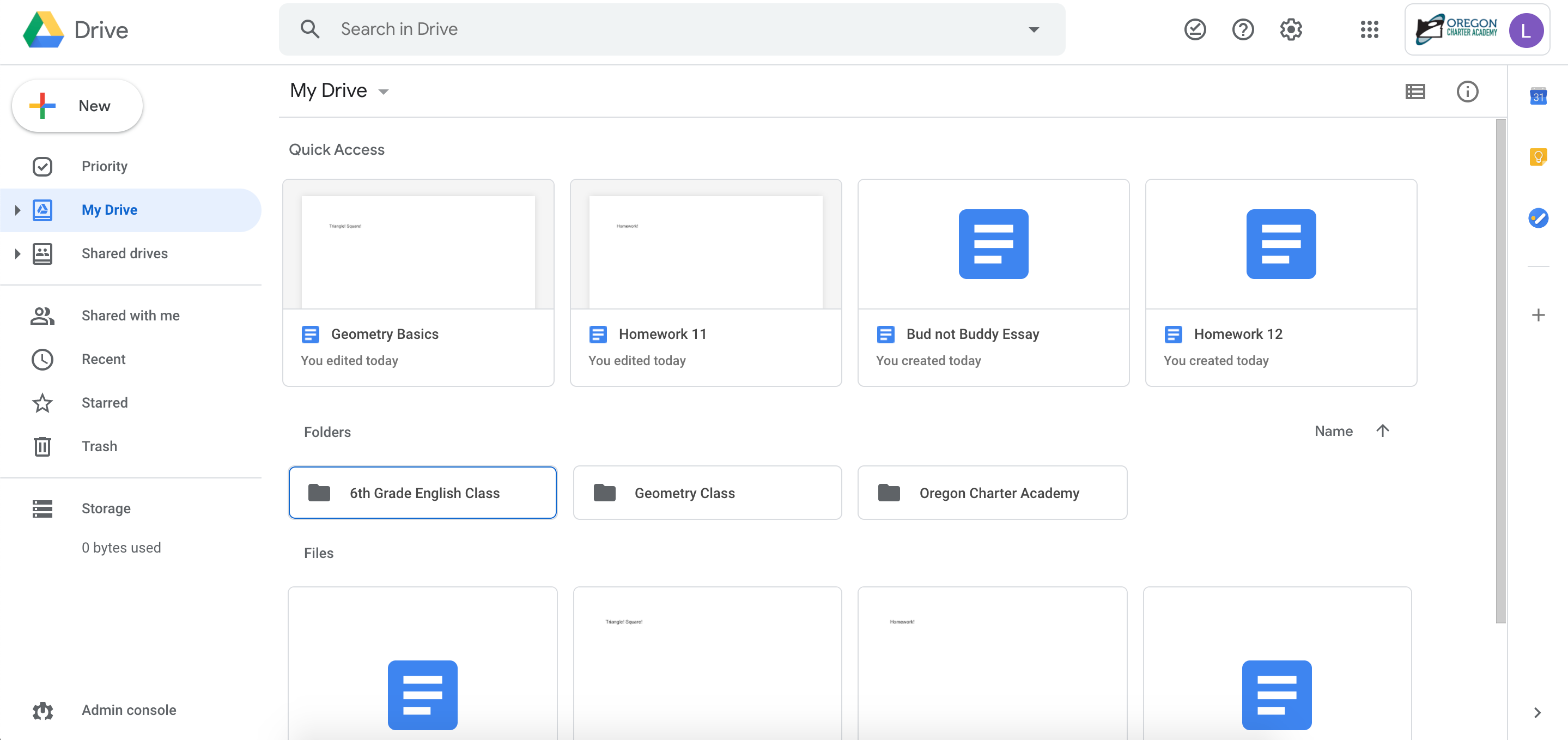
In the main part of the screen, you will see the "My Drive" section. This will show you all the files and folders you have saved on your drive. If you are just starting out, you might not see any files yet.
The "My Drive" section has a few different areas. The "Quick Access" bar across the top of the screen will show you some files you have recently worked on.

The "Folders" section will show you any folders in your drive. We will explain how folders work later in this article.

The "Files" section will show you any files you have saved to your drive that have not been placed into a folder.

On the left side of the screen there is a menu with several different options available.

"My Drive" will show you all the files saved in your google drive, it is selected automatically when you first enter Google Drive.

"Shared with me" will show you any files that have been shared with you through google drive by another person. This is an important sections because any files that you access through canvas will appear here.
"Recent" will show you any files that you have opened recently.
"Trash" will show you files that you have deleted from Google Drive
If you ever can't find a file, you can use the "Search" bar at the top of the screen to search for a file by name.
Opening a File
To open a file in Google Drive, simply double click on the file!
Making a New File
To create a new file in Google Drive, click the "New" button
A drop down menu will appear; here you can select whether you want to create a Google Doc, a Google Slides presentation, or, a Google Sheet.

Click the option you want, and a blank file will open in a new tab.
Uploading a File or Folder
To upload a file from your computer onto Google Drive, click the "New" button.
In the drop down menu, select "File Upload" or "Folder Upload" to upload a file or folder.
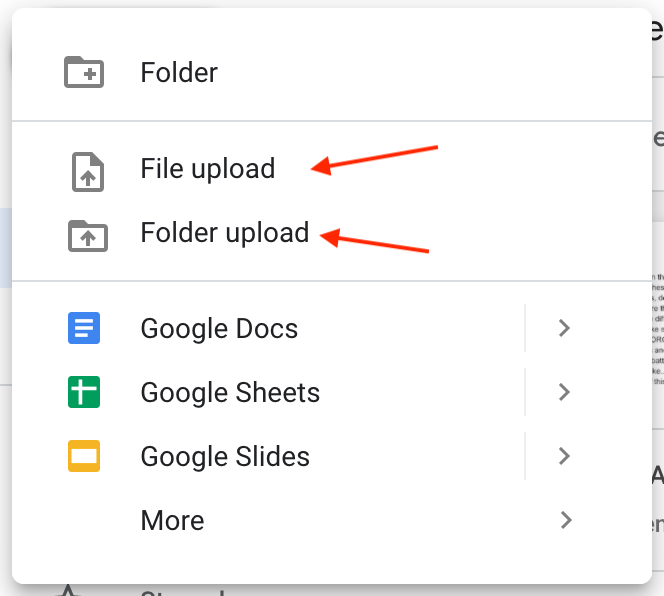
Once you click "File Upload" or "Folder Upload" your computer's "Files" window will open, and you can select a file or folder to upload.
You can also drag and drop files from your computer's "Files" window into Google Chrome. For more information on using the "Files" app on your Chromebook, check out the following article:
How do I find a file that is saved on my Chromebook?
Downloading a File
To download a file from Google Drive onto your hard drive, either tap on the file with two fingers, or press alt and click on the file.
In the menu that appears, click "Download." Once the file is downloaded it will be available when you do not have internet, and can be accessed through your Chromebook's "Files" app.
Organizing Files
You will be using Google Drive for your school work often, and creating many documents in it. It is important to keep your drive organized so that you can always find the files that you are looking for. Using "Folders" can help you keep your drive tidy!
What is a Folder?
Files in google drive can be organized into "Folders." A folder is just a container for organizing files. Folders can be named, and have files added to them. Folders can even contain other folders! As an example, you might want to create a folder for one of your classes, and put all of your homework for that class into that folder. That way, you know where all of your files for that class will be located.
How Do I Create a Folder?
To create a folder, click the "New" button.
In the drop down menu, click "Folder"

In the window that appears, enter the name of your folder, and click "Create."

Your new folder will appear in the "Folders" section of your drive. You can double click the folder to open it. While you have the folder opened, any new files or folders you create will be placed inside of it.

How Do I Move Files Into or Out of Folders?
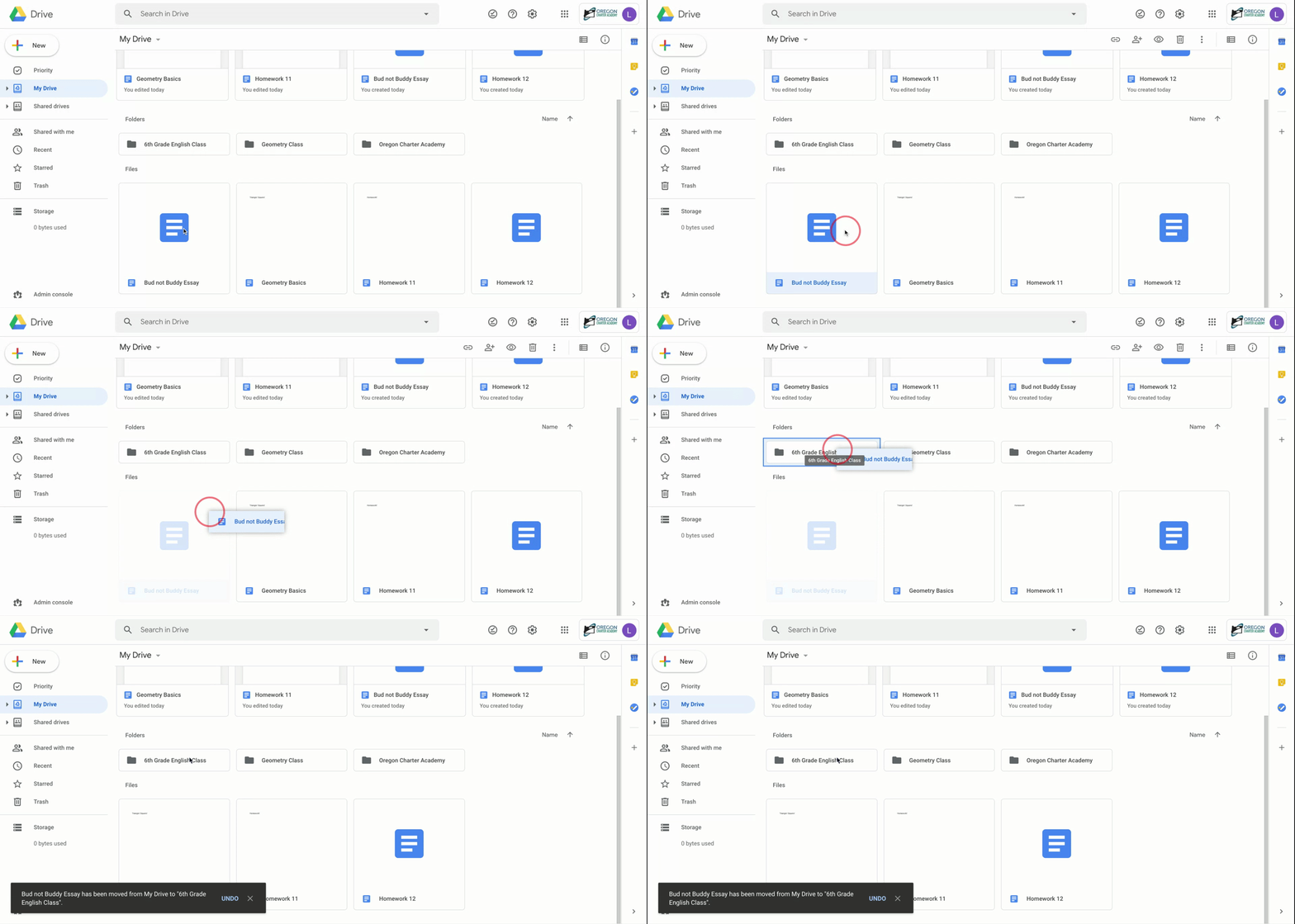
To move a file from your drive into a folder, you can simply drag and drop it into the folder of your choice.
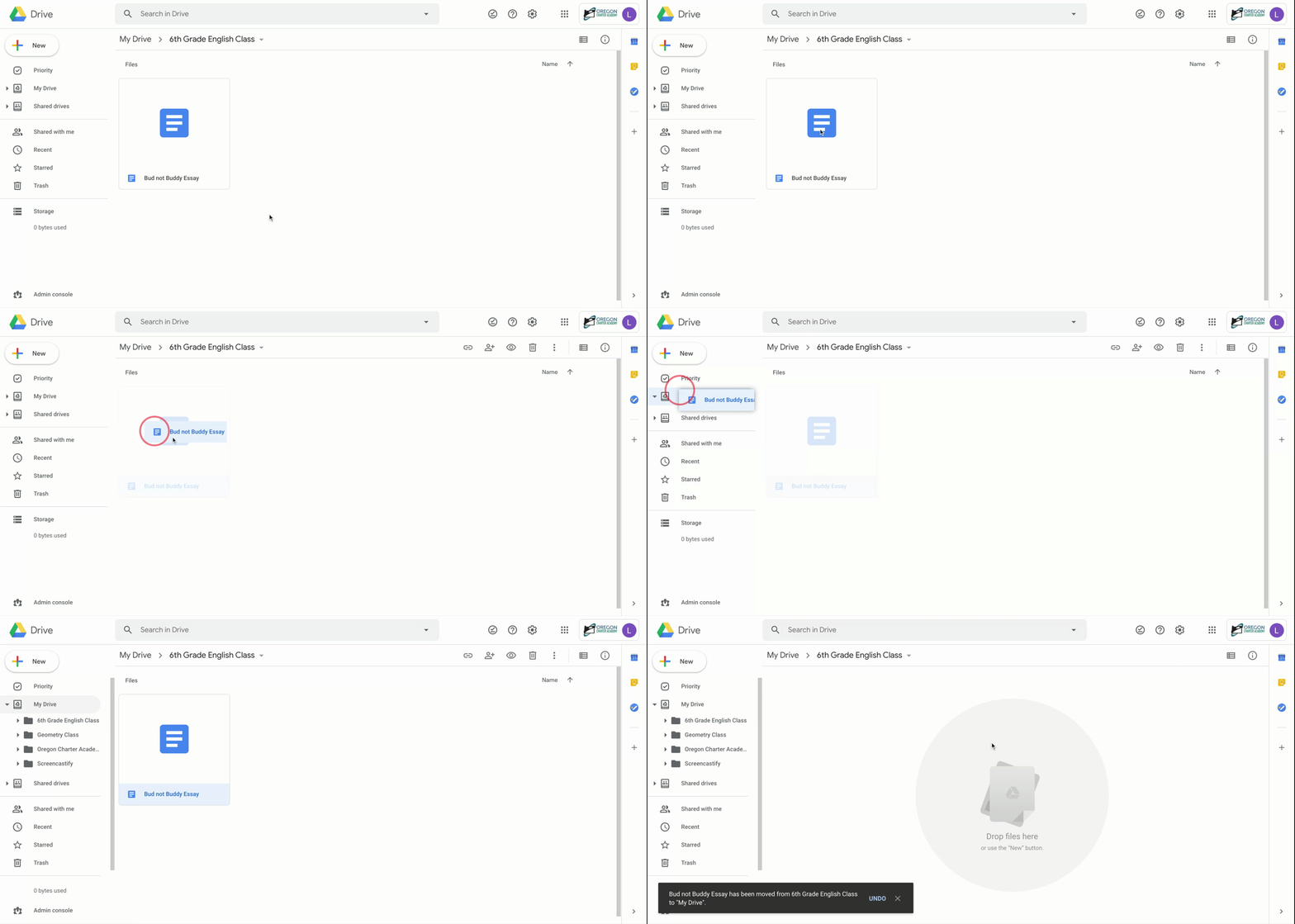
To move a file out of a folder, open the folder, then drag and drop the file into the "My Drive" section on the left side of the screen.
Deleting Files and Restoring Files
On your ORCA account you have unlimited storage on Google Drive! This means that you shouldn't even have to delete files to free up space. However, if you ever want to delete a file that you have created by mistake, or delete files to clean up you drive, this section will walk you through on how to do so.
How to delete
To delete a file, either tap on the file with two fingers, or press and hold "alt" and click on the file.

Click "Remove" at the bottom of the menu that appears. The file will then be moved into your "Trash."
The trash section
Deleted google drive files will appear in your "Trash." Files in trash can still be viewed or restored, but they will be permanently deleted after 30 days.
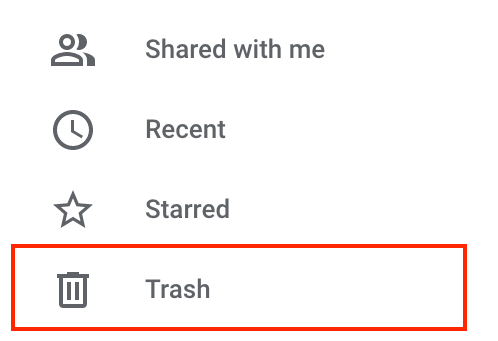
To access your Trash, click the "Trash" button in the menu on the left side of the screen.
Restoring files
Once inside your trash, if you wish to restore a file, select the file by clicking it, and then press the "Restore" button. The "Restore" button looks like this:
Once restored, the file will appear back in your drive.
If you ever need help restoring a file that you think has been permanently deleted from your Google Drive, you can reach you to the tech team for support. The following article contains information on how to contact the tech team: How do I get technical support?
Sharing Files in Google Drive
You will often need to share your Google Drive Files with a teach or another student. Check out the following article for information on how to share files in Google Drive:
How do I share my Google file with someone?
Using Docs and Slides
Most of the files in your Google Drive will be Google Docs, or Google Slides, these articles will teach you the basics for using both:
Getting Support
If you have any questions, or if you ever run into any issues using Google Drive, check out the following article for how to get technical support:
Comments
0 comments
Article is closed for comments.