
If you need help finding an app installed on your Chromebook, follow the steps below:
1) The quickest way to find your apps is to use the built in launcher on your Chromebook. To open the launcher, click on the circle icon at the bottom left of your desktop.

2) The bottom bar (Shelf) of your desktop will stretch up to to show the launcher. Here you can start to type the name of the app you are searching for in the bar that says "Search your device, apps, web..." Or, click the up arrow shown in the image below to open the list of all apps on your Chromebook.
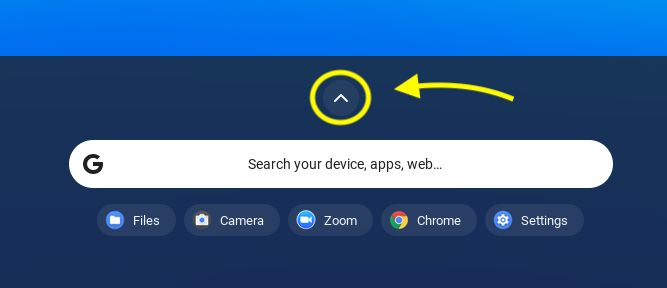
3) Here you can view all of your apps in an organized list! The search bar is still located at the top of this new window if you would like to narrow down the list to what you are searching for. Double-click the icon (picture) or name for the app you are searching for to open it.

Find yourself Searching for the same app often? learn how to "pin" it to the shelf of your desktop, or even the desktop itself for easy access!
If you run into any issues, or have any question about your apps, please refer to the following article for how to reach out to tech support tech support.
Comments
0 comments
Article is closed for comments.