
Whenever you download a file, take a screenshot, or take a video using your Chromebook, it is saved to your Chromebook's hard drive. Unlike files on Google Drive, which live in the cloud and can be accessed from any computer, these files live on your Chromebook's hard drive, and can only be accessed on your Chromebook. Sometimes you might want to access a file that is saved to your hard drive to open it, or upload it onto the internet. For example, you might want to put a picture you took into a Google Doc you are making or a discussion post in Canvas. To do so, you have to use the "Files" app on your Chromebook.
Open the "Files" App
The "Files" app icon looks like this:

If you are unsure how to find an app on your Chromebook, check out this article:
How do I find apps on my Chromebook?
Once you open the "Files" app, it will look like this: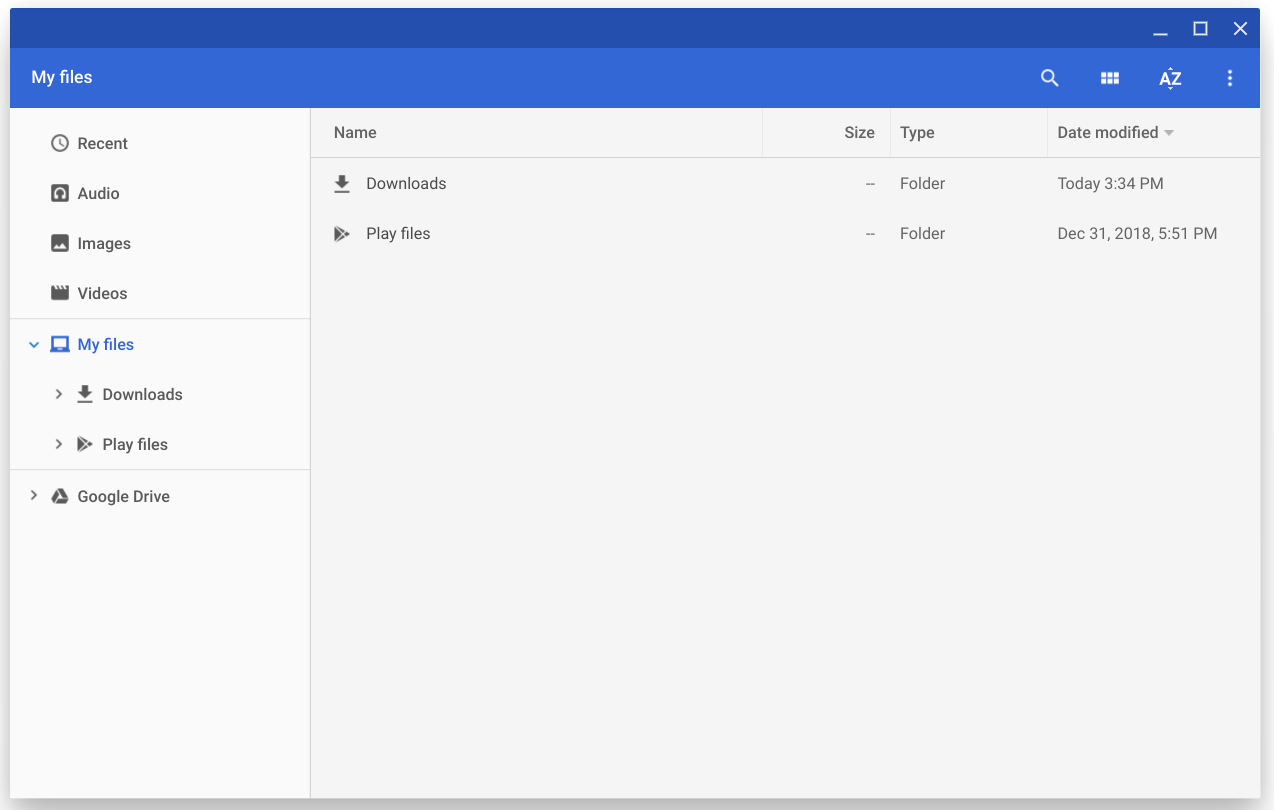
In this window, you can find any file that is saved to your hard drive. If you ever upload a file to the internet, the same window will open to allow you to select the file or files you want to upload.
Finding your File
On the left side of the window there are sections you can click to see different files.
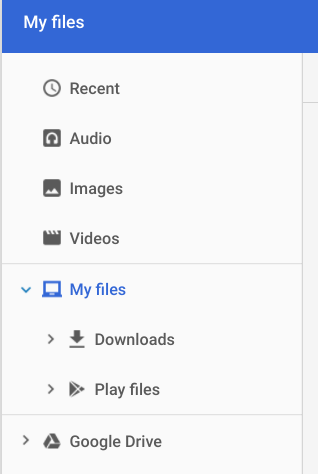
The "Recent" section will show you any files you have recently opened, downloaded, or saved. For example, if you take a new screenshot, it will appear at the top of the list here.
"Audio," "Images," and "Videos," will each show any audio recordings, pictures, or videos saved to your computer. If you record a video on your Chromebook, you will be able to find it under "Videos."
In the "Downloads," section under "My Files," you can find any files you have downloaded. If you save an image off of the internet, you will be able to find it here.
Once you have selected a section, files will appear in a list that you can scroll through to find a specific file.

Searching
If you are having a hard time finding a file, you can search for a file by clicking the magnifying glass in the top right corner of the window and typing in the name of a file into the "Search" field.

Open your File
Once you have found the file you are looking for you can double click on it to open it. If you are uploading a file, you can double click on it to upload it, or click on it to highlight it, and then click "Open" in the bottom right corner.
If you have any questions, check out the following article for information on how to get in touch with Tech Support:
Comments
0 comments
Article is closed for comments.