
Google Drawings gives you the tools you need to add some flair to your documents -- diagrams, pictures, and flow charts. You can then add these into your existing Google Docs, Slides, and save it to your Drive.
The only tool that you'll need is your browser, so let's get started!
How to use Google Drawings
- Insert a new drawing into a Google Doc
- Insert an existing drawing from Google Drive
- Use the editing tools
- Select and format shapes
- Copy a shape
- Change your drawing size
- Further Support
Insert a new drawing directly from Google Docs

- On your Chromebook, open a document.
- In the top left, click Insert > Drawing > New.
- Insert shapes, lines or text with the editing tools.
- When you're done with your drawing, click Save and Close.
Return to top
Insert an existing drawing from Google Drive
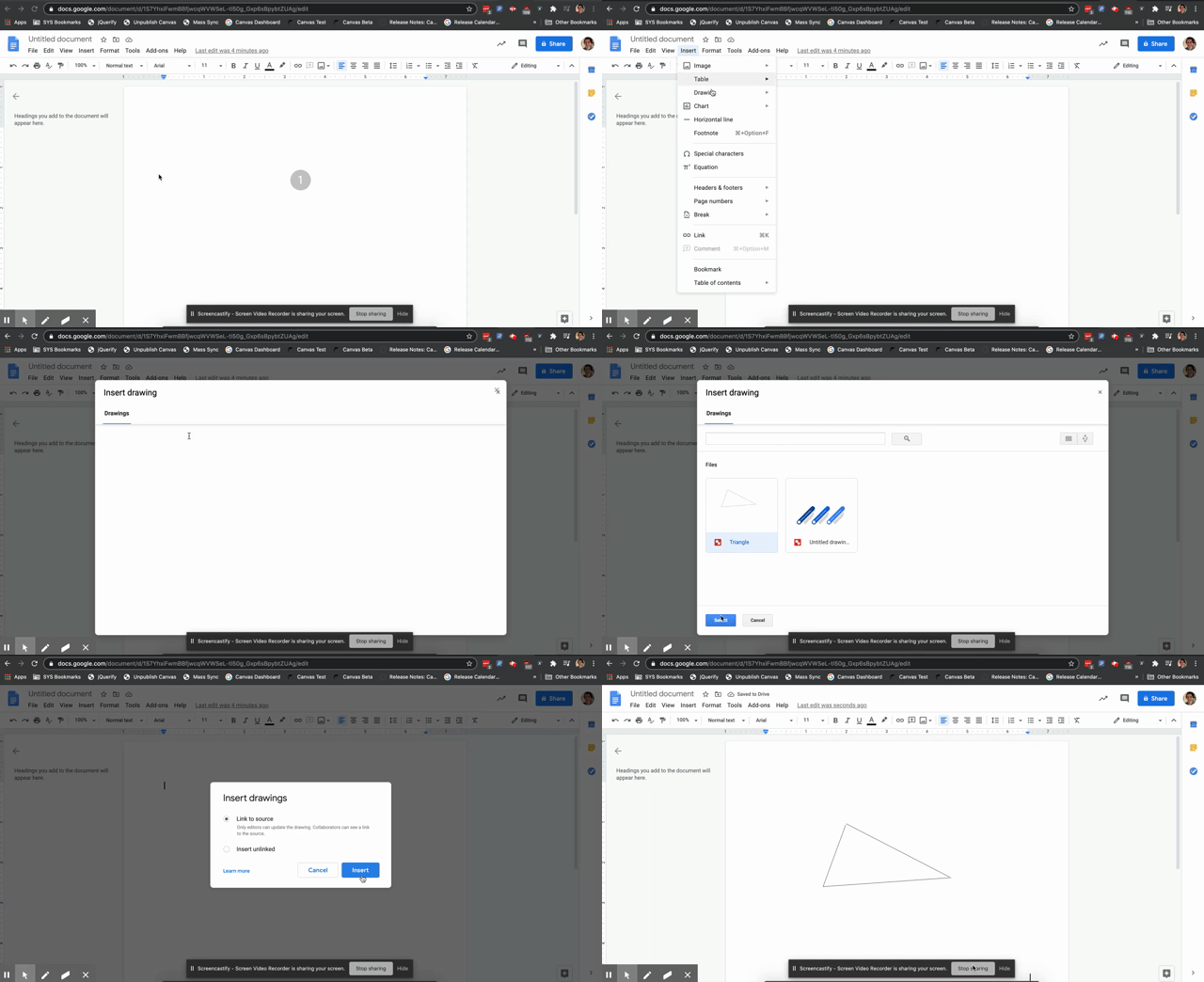
- On your chromebook, open a document.
- In the top left, click Insert > Drawing > From Drive.
- Click the drawing you want to insert, then Select
If you choose to keep the drawing Linked to Source, if you update the drawing later it will update in the document automatically.
If you choose to keep the drawing Unlinked, the drawing will stay exactly as it is when you inserted it.
Editing tools
The remaining steps for this how-to guide will take place in Google Drawings itself. You can get to it by launching your Google Drawings app or visiting the site directly
Draw a line
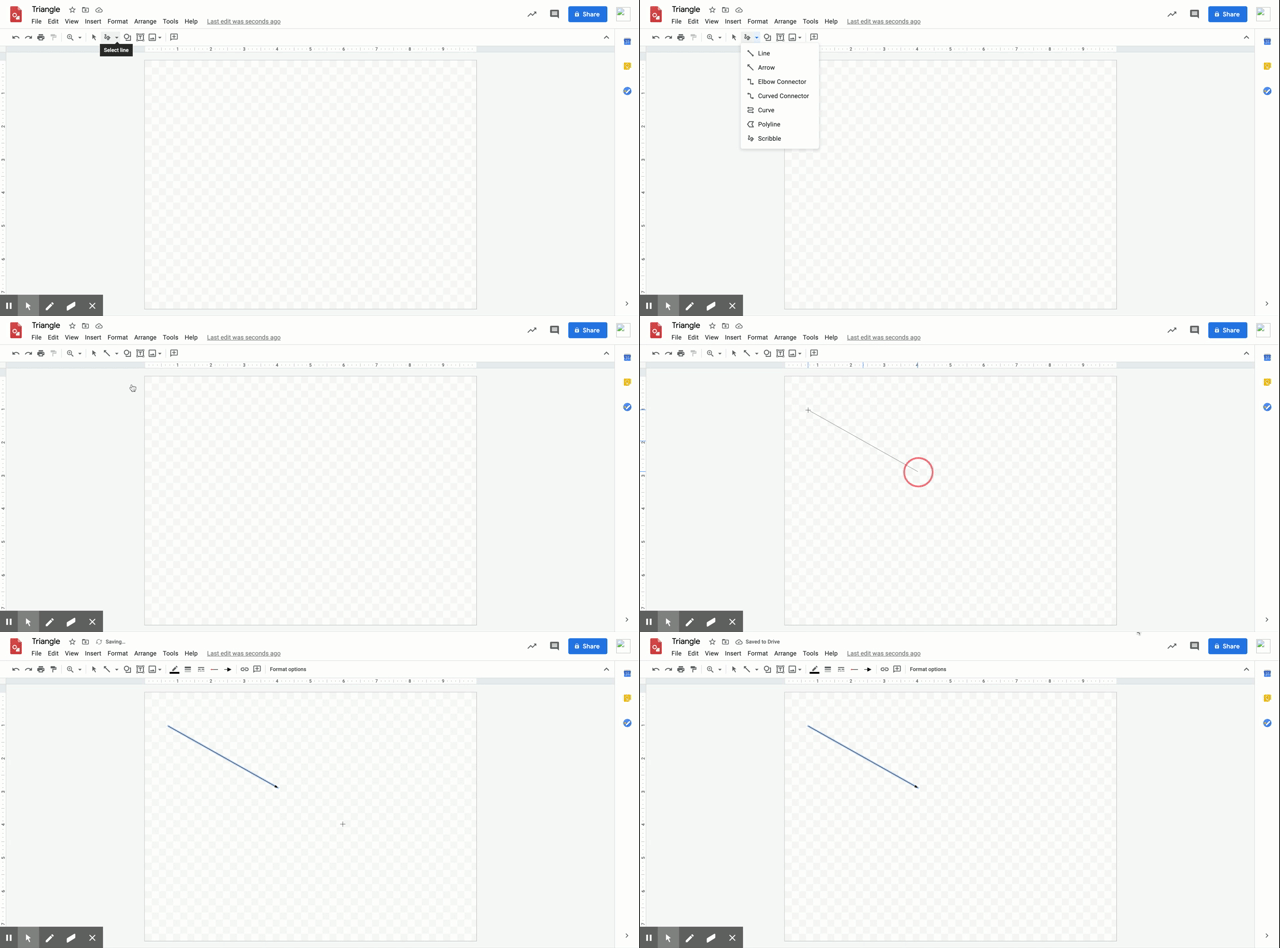
- At the top of the page, find and click Select line.
- Pick the type of line you want.
- Place the line on your drawing:
- Line, Elbow Connector, Curved Connector or Arrow: Click to start, then drag across the canvas.
- Curve or Polyline: Click to start, then click at each point you want the line to bend. Double-click or complete the shape to finish.
- Scribble: Click to start, then drag across the canvas.
- Click Select.
- Click and drag where you would like your line to be
Draw a shape
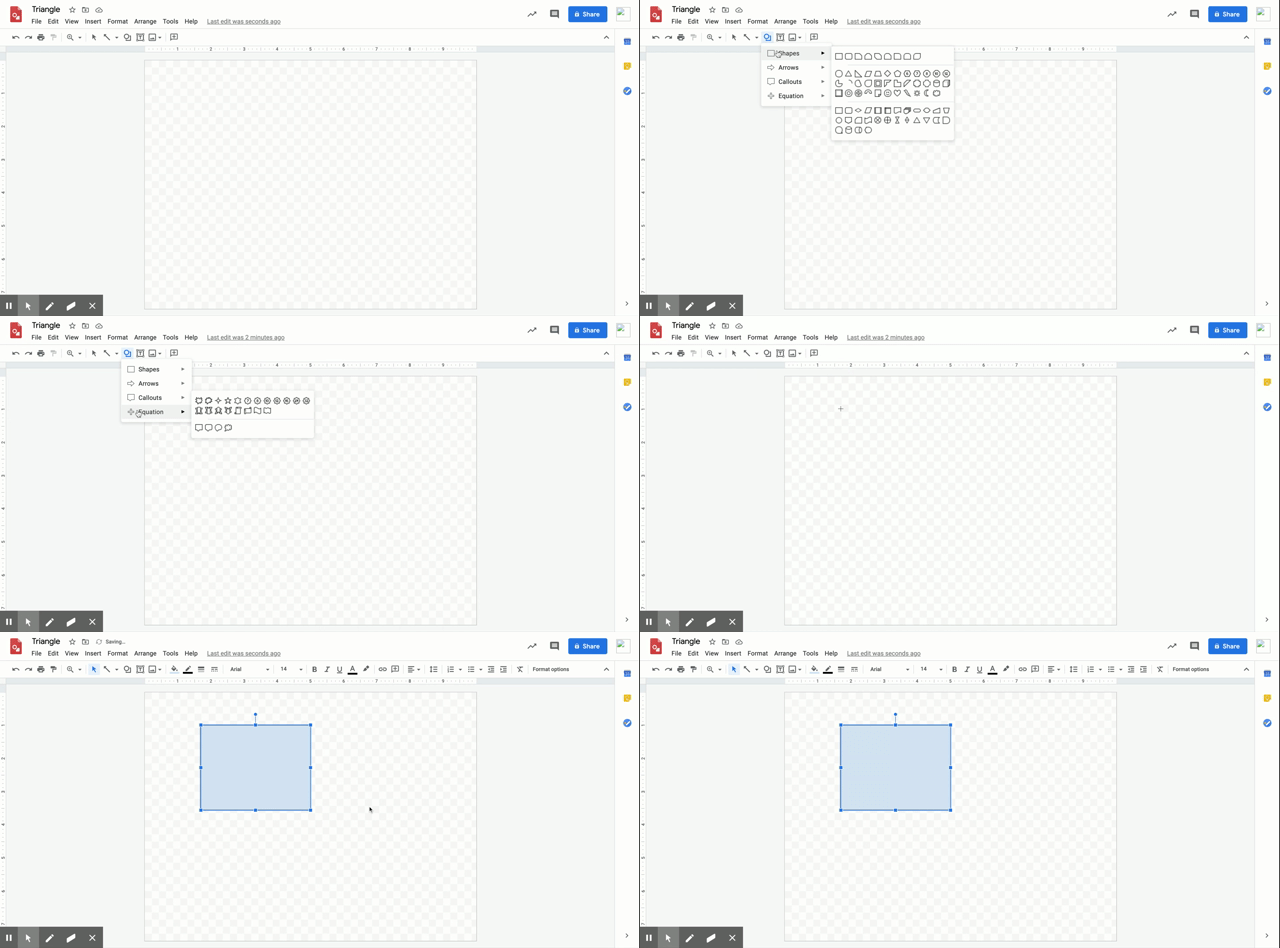
- At the top of the page, find and click Shape.
- Choose the shape you want to use.
- Click and drag on the canvas to draw your shape.
Insert Text
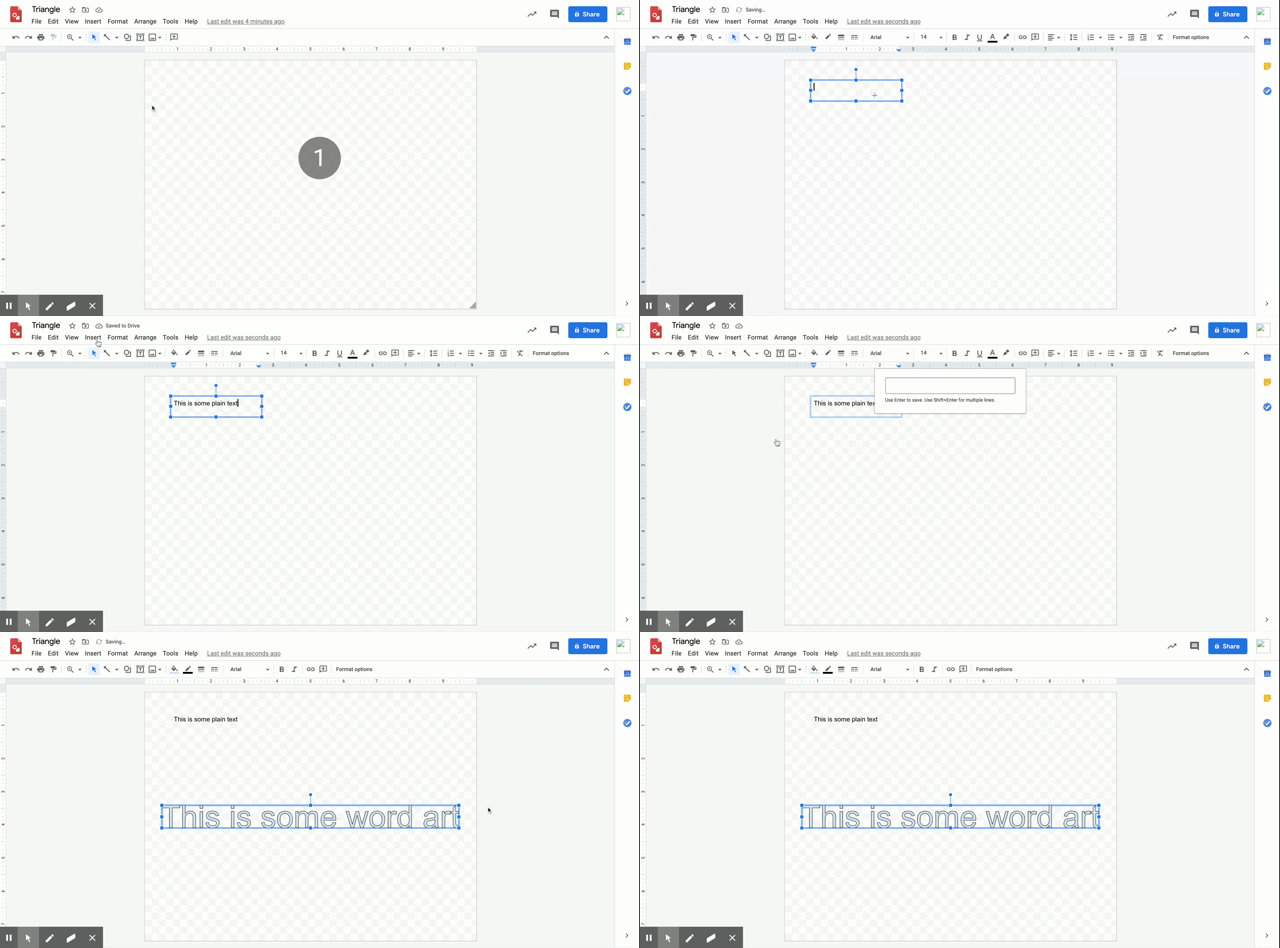
- At the top of the page, click Insert.
- To place text directly on the canvas as a shape, click Word Art.
- To place text inside a box or confined area, click Text Box and click where you want to put it.
- Type your text and press Enter.
- You can select, resize and format the word art or text box, or apply styles like bold or italics to the text.
Insert an image
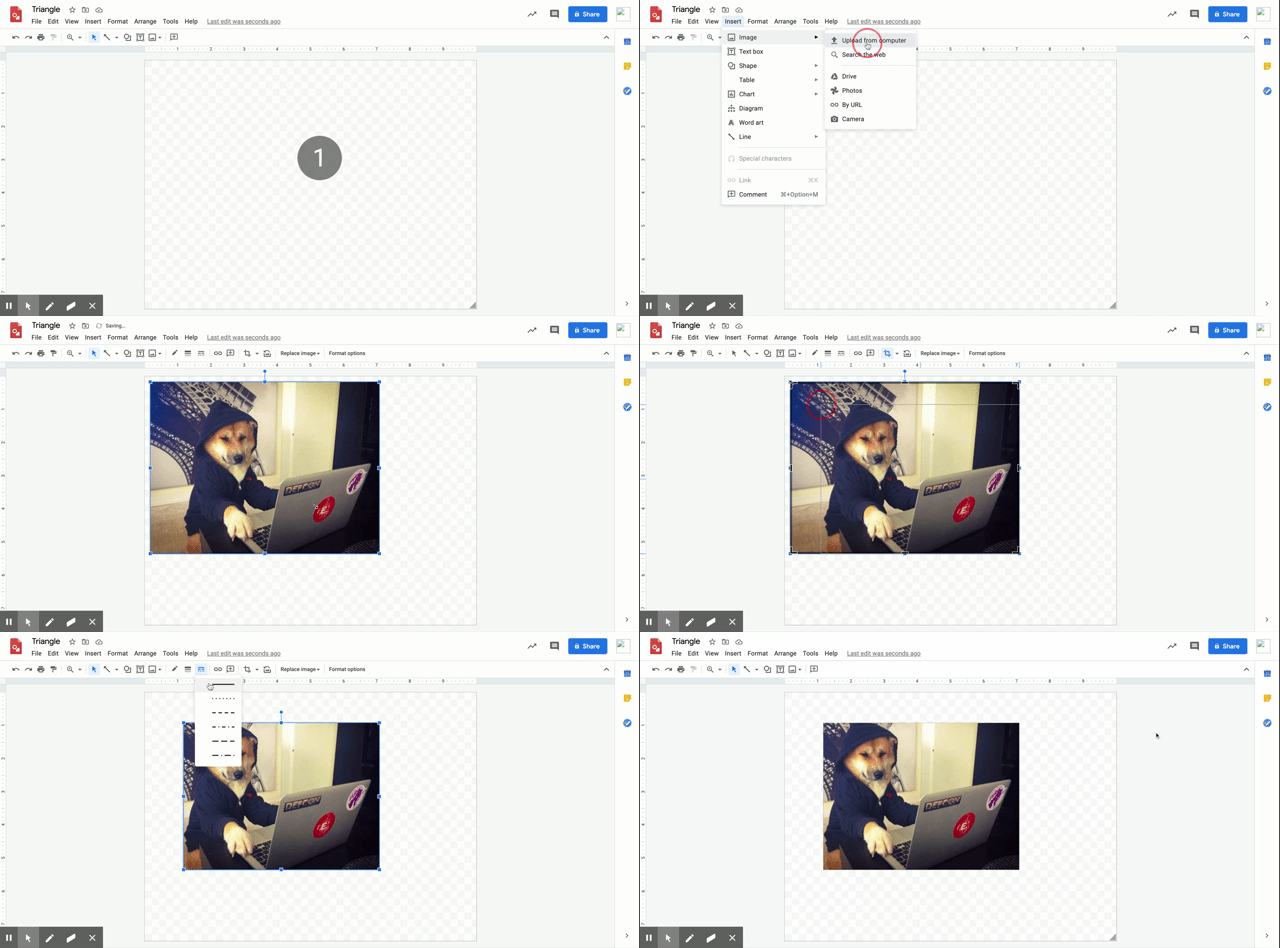
- At the top of the page, find and click Image.
- Follow the instructions to pick or upload an image.
- You can move and format the image like any other shape.
- Move the image: Drag it on the canvas.
- Resize the image: Drag the blue boxes at the corners.
- Rotate the image: Drag the blue dot that’s outside of the shape. Hold Shift to rotate 15° at a time.
- Change border color, line thickness, or border/line style: Use the buttons above the canvas.
Return to top
Select and format images
- On your computer, open a drawing in Google Drive.
- At the top of the page, find and click Select.
- On the canvas, click the shape, line, or text box you want to change.
- Move a shape: Drag it on the canvas.
- Resize a shape: Drag the blue boxes at the corners.
- Rotate a line: Drag the blue dots at the corners. Lines can be rotated this way.
- Rotate a shape: Drag the blue dot that’s outside of the shape. Hold Shift to rotate 15° at a time.
- Change fill color, line color, line thickness, or border/line style: Use the buttons above the canvas.
- Put text inside a shape: Double-click an enclosed shape and start typing.
Return to top
Copy a shape
To copy a shape, hold Option (on Macs) or Ctrl (on Windows and Chromebook) and drag the copy to a new location.
Change your drawing size
- On your computer, open a drawing in Google Drive.
- Go to the menu and click File
Page setup.
- Select a size from the dropdown menu. To choose your own size, select Custom.
Return to top
Still having trouble?
If you're not finding the information you need in this article, please get in contact with the support team. You can find how in this Guide Article:
Comments
0 comments
Article is closed for comments.