
What is Google Sheets?
Google Sheets is Google's online spreadsheets app. It allows you to edit, share, and collaborate on spreadsheets, similar to Microsoft Excel. You will most likely end up needing to use Google Sheets for math or science classes, but you may also enjoy using it for your own organizational purposes! Google Sheets is a very powerful tool, and we will only scratch the surface of its features in this guide, so feel free to spend some time exploring it on your own!
Click the links below to jump to any section, or scroll through the guide to read all our information on Google Sheets.
- Spreadsheet terminology
- Create a new spreadsheet
- Naming your sheet
- Adding data to your sheet
- Formatting your sheet
- Adding functions
- Sharing your sheet
- Get help
Spreadsheet Terminology
Before we get into how to use Google sheets, it is important to have an understanding of some basic spreadsheet terminology. Check out the terms below to make sure you understand the elements of a spreadsheet:
- Cell: A single data point or element in a spreadsheet. These are all the grey boxes within the sheet.
- Column: A vertical set of cells. These are marked with letters at the top of the sheet.
- Row: A horizontal set of cells. These are marked with numbers on the right side of the sheet.
- Range: A selection of cells extending across a row, column, or both.
- Function: A built-in operation from the spreadsheet app, which can be used to calculate cell, row, column, or range values, manipulate data, and more.
- Formula: The combination of functions, cells, rows, columns, and ranges used to obtain a specific result.
- Worksheet (Sheet): The named sets of rows and columns making up your spreadsheet; one spreadsheet can have multiple sheets. You may also think of these as "Tabs" within your sheet.
- Spreadsheet: The entire document containing your worksheets
Return to top
Create a new spreadsheet
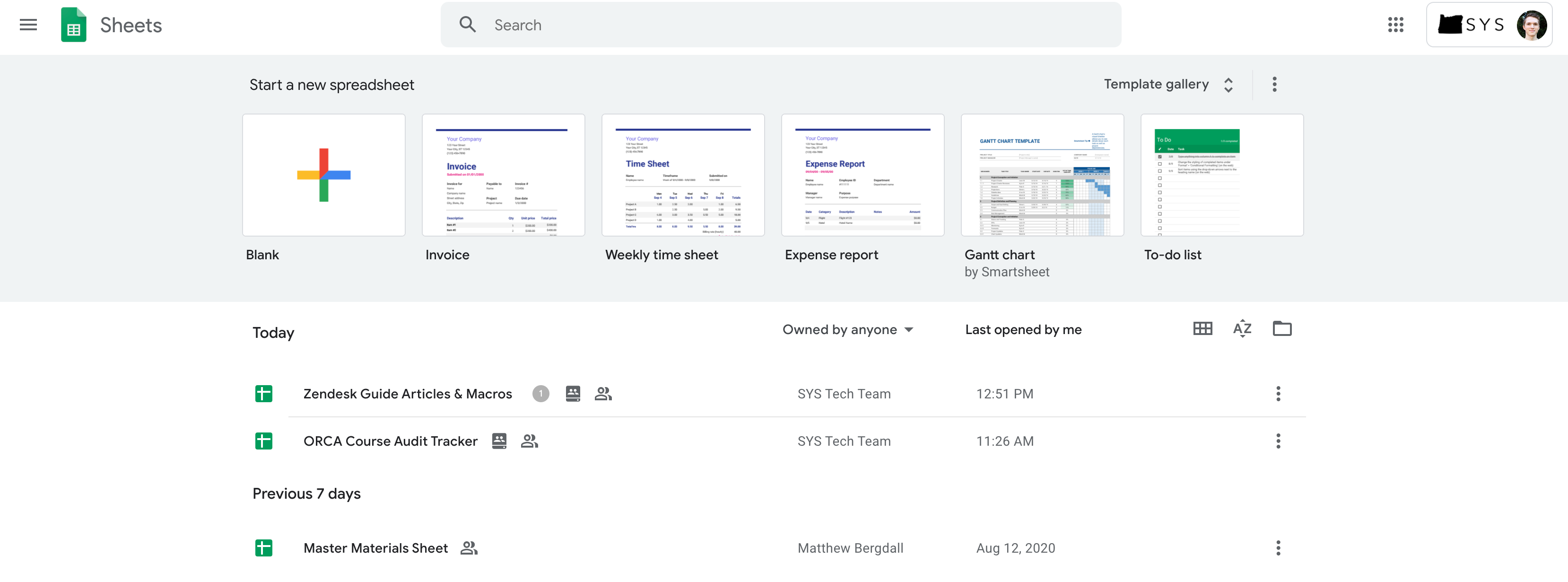
- On your Chromebook, and click this link to launch the Google Sheets page
- You can also get here by selecting the "Sheets" app on your Chromebook
- In the top left, click the
 sign to create a blank page. You can also choose from any of the pre-defined templates along the top.
 - You can also create a new sheet by clicking the "NEW" button on your your Google Drive dashboard and select "Google Sheets"
Return to top
Naming your Sheet

To name or rename your sheet:
- Double click on the title of the sheet in the top left corner of the screen.
- Type in your new name.
Return to top
Adding data to your sheet
When you first open up a new sheet, it will be blank. This section will explain how to add data to a sheet.
Select any cell you’d like, then go ahead and type something in. When you’re done entering data into a cell, you can do one of 4 things:
- Press "Enter" to save the data and move to the beginning of the next row
- Press "Tab" to save the data and move to the right in the same row
- Use the arrow keys on your keyboard (up, down, left, and right) to move 1 cell in that direction
- Click any cell to jump directly to that cell
Return to top
Editing cells
To edit cell that has already had data added to it, double click on that cell. You will then be able to type in that cell.
You can also edit a cell by clicking on the cell, and then typing in the bar at the top of the screen which displays the content of the selected cell.

Return to top
Selecting cells
To select cells in your sheet to either edit, delete, or copy them, you can use the following methods:
- Click directly on a cell to jump to that cell.
- Use the arrow keys to move between cells.
- Click and drag your mouse to select a range of cells.
- Hold "shift" and use the arrow keys to select a range of cells.
Return to top
Copying and Pasting
If you don’t want to type in everything manually, you can also add data to your Sheet by copying and pasting a group of cells, or copying and pasting from another sheet, or a website or document. Often, tables from websites or documents will easily copy over via copy and paste. You may need to reformat the data afterwards, but if you need to copy something, give it a try!
To copy and paste data into a sheet, use the following steps:
- Highlight the data you want to copy. (This could be data from another sheet, a table from another document or site, or a range of cells from the sheet you are working on).
- Press "ctrl" + "c" to copy the selected data.
- Select the cell you want to copy the data at. Note, the copied data will treat this as the upper-left most cell, and paste in below and to the right of this cell.
- Press "ctrl" + "v"
Copying data within a sheet:
To copy data within a sheet, you can simply select a cell or range of cells, copy them, and then select another cell to paste that data in. You can also click and hold the dot in the bottom right corner of a cell to copy repeatedly copy data across a row or column by dragging and dropping. You can drag and drop a range of cells this way as well. See the gif below for a demonstration of this feature:

Return to top
Deleting Cells
To clear the data from a cell, or range of cells, simply select the cell or cells you want to clear, and press "Backspace."
Return to top
Create a new worksheet
Inside your Google Sheet, you can actually have multiple sheets! You can switch between these sheets like tabs at the bottom of the screen. To add an additional sheet, click the plus button in the bottom left corner of the screen:

With multiple sheets created, simply click on them at the bottom of the screen to switch between them.
You can also rename individual sheets by double clicking on their names.

Return to top
Formatting your sheet
At the top of the screen in Google Sheets there is a toolbar of options for formatting data in your sheet. Many of these options are the same as in other Google apps like Google Docs, or Slides. Here is what each button does:

The Format number as... options highlighted in the image will add a formatting option to numbers in selected cells. For example, the percent button will add a percent symbol to the numbers in each selected cell. The increase or decrease decimal places buttons add or remove extra decimal places onto numbers in the cells selected.
The Font Settings format the text in selected cells. These buttons work very similar to font settings in Google Docs, or Slides.
Cell Color and Cell border will format cells by changing their color or adding a colored border around cells.
Merge Cells allows you to combine multiple cells, making a single, larger cell.
Cell Data Alignment settings will change in what area of a cell data is oriented. For example, by default, data is added in the top left corner of a cell. With these settings, you could center data within a cell, or even make it appear on an angle.
Insert link allows you to insert a link to a website. This works the same as in other Google apps!
Insert comment allows you to add a comment to the sheet, similar to other Google apps.
Insert Chart allows you to create a chart or graph based on data in your sheet. This is a pretty complex feature, check out google's guide for it HERE.
Continue to the next section to learn about adding Functions
Return to top
Functions
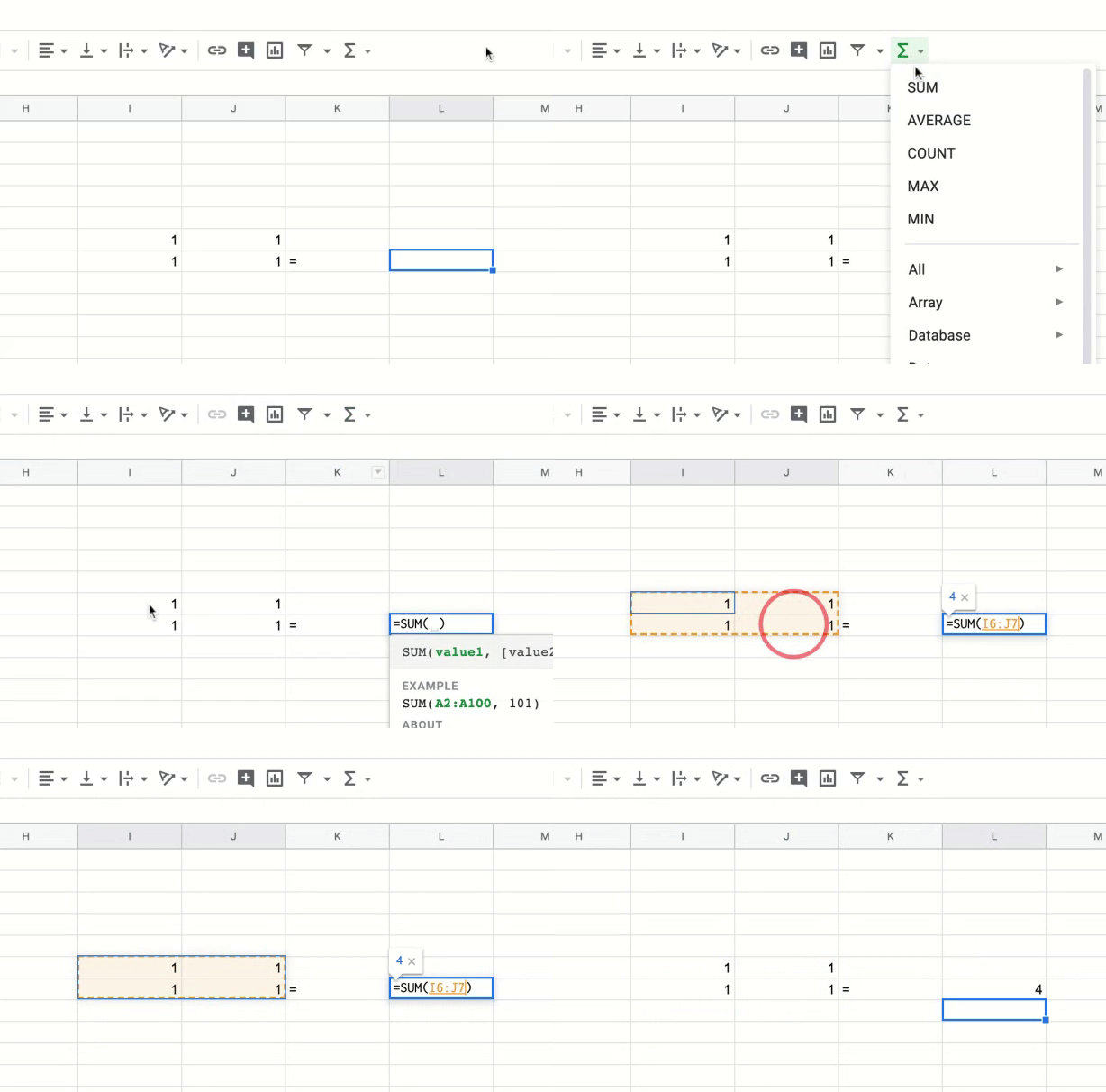
The "Functions" feature in sheets allows you to add a variety of calculations to a sheet. You can set functions to be calculated based on cells in a sheet. This way, when you change numbers within cells that are being used in a function, the function will automatically update its calculation. Follow the steps below to add a function to a sheet.
- Select a cell where you would like to output the answer of the function you are selecting.
- Click, the functions icon in the toolbar
- Select the function you would like to use.
- Either click and drag to highlight the cells you would like to use in the function, or manually type them into the function's cell.
- Press enter, and the function will calculate and display its value.
In the gif below, I use the "SUM" function to add together four cells.
Functions are a powerful and complex tool in sheets. We have only gone over the very basics of this feature here. Try playing with the tool on your own to see what you can accomplish!
Return to top
Sharing your Sheet
Sharing Google sheets works the same as sharing any other Google Drive files! Check out the following guide to learn how share your Google sheets:
How do I share my Google file with someone?
Return to top
Having troubles with Sheets?
Google Sheets is a complex app. If you are not finding the information you need here, we recommend searching the internet for more detailed and specific guides.
If you have a specific question regarding Google Sheets, please get in contact with the support team. You can find how in this Guide Article:
Comments
0 comments
Article is closed for comments.