
Sometimes you might want to send a google file to someone else. You may need someone to edit, review, or just read your work. Collaborating on google docs is made easy through Google's "Share" feature. These steps will walk you through how to share a Google file.
- On a computer, go to Google Drive, Docs, Sheets, or Slides.
- Click the file you want to share to open it.
- Click the "Share" button in the upper right hand corner of the screen.
NOTE: Share button is blue in Docs, green in Sheets and Yellow in Slides. Example image is in Docs.
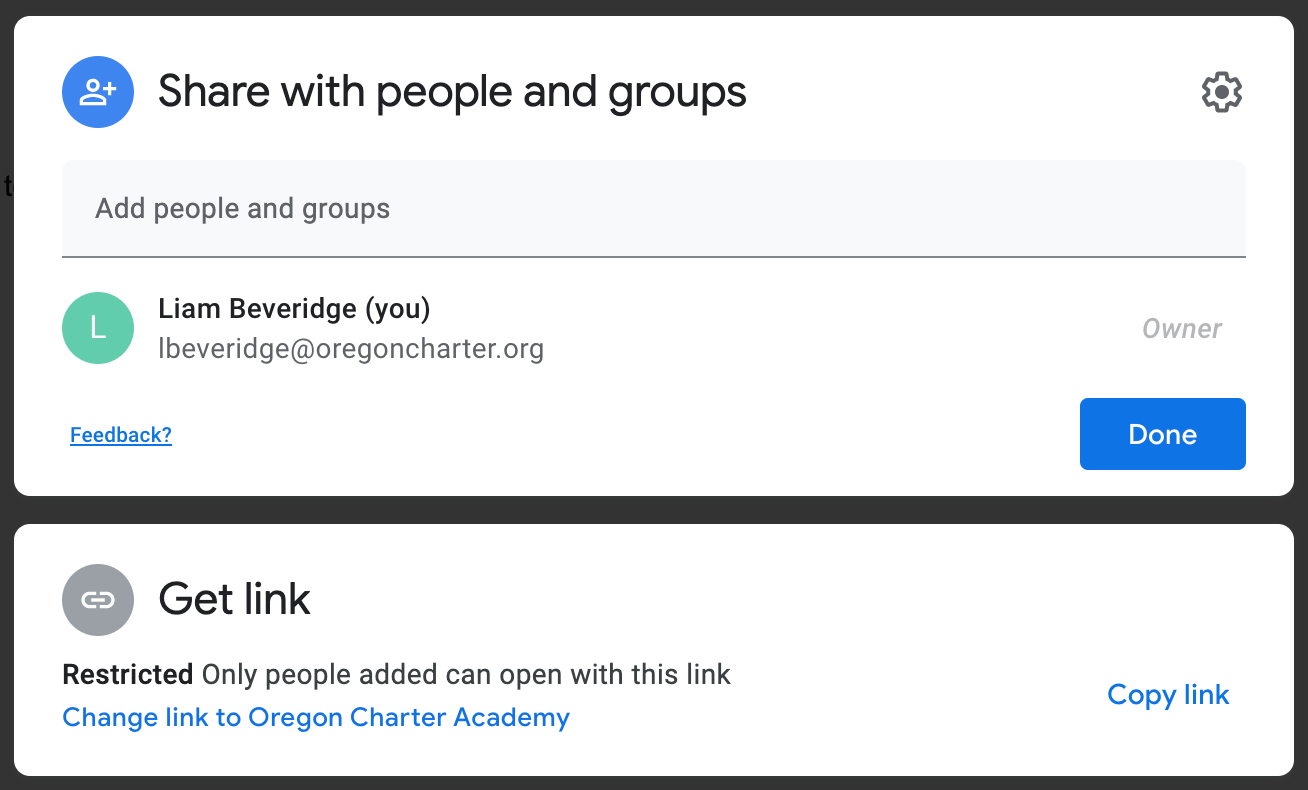
From here, a sharing window will open, and you have a few options for how to share your file. You can either:
Share with Specific People
The "Share with people and groups," section of the sharing window will allow you to directly share your file with people you select. These people can be notified that you have shared your file with them, and you can select whether or not they can edit your file. Follow these steps to share your file with specific people:
- Under "Share with people and groups," enter the email address you want to share with.
- To change what people can do to your file, to the right of each name, click the Down arrow
- Here you have three options of what permissions each person has:
"Viewer," "Commenter," or "Editor."
- "Viewers" can only read or copy your file.
- "Commenters" can comment to make suggestions on your file, but they cannot change it.
- "Editors" can directly change your file.
- Choose to notify people.
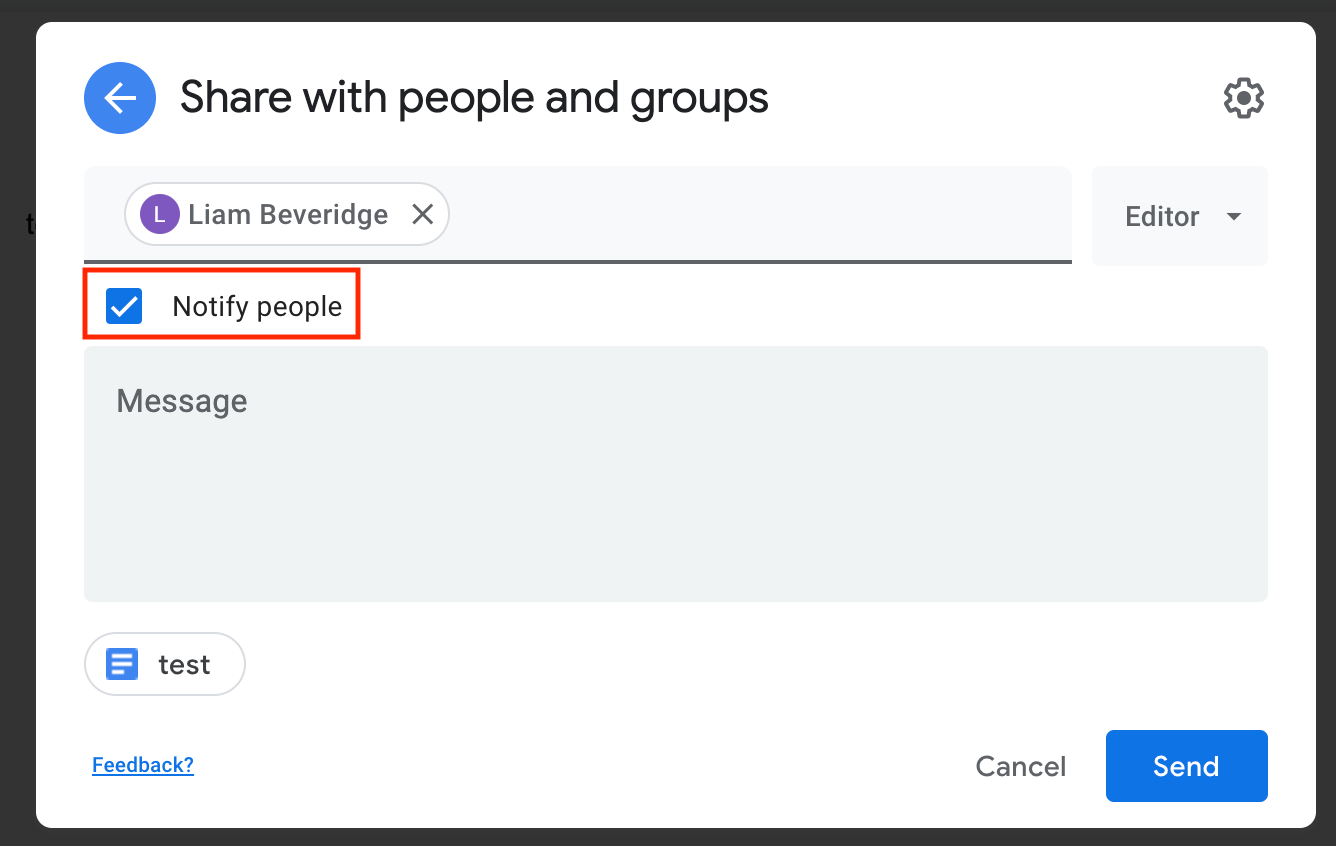
- If you want to notify people that you shared a doc with them, check the box next to Notify people. They will receive an email that you shared the file with them
- If you don't want to notify people, uncheck the box. They will not receive an email.
- In the "Message" box you may write a message to include when you notify the people you share the file with
- Click Share or Send to share your file!

Share a Link to your File
You can send other people a link to your file so anyone with the link can use it. The link could be posted in an email, a Canvas message, or a Canvas discussion board. Follow these steps to create a shareable link to your file:
- Under the “Get Link” section of the sharing window, click "Change link to Oregon Charter Academy"

By default, the link is "Restricted" meaning only people you have added to the document can see it. Clicking "Change link to Oregon Charter Academy" will allow anyone who clicks the link while signed into their ORCA email to see your file. - To decide what people can do with your file when you share it, click the down arrow
"Viewer," "Commenter," or "Editor."

-
- "Viewers" can only read or copy your file.
- "Commenters" can comment to make suggestions on your file, but they cannot change it.
- "Editors" can directly change your file.
-
- If you are posting the link in a Canvas discussion, or sharing it with multiple people, you will probably want to choose "Viewer" so that people with the link will not be able to edit your document.
- Click "Copy link" and click "Done" to close the window.
- You can now past the link an an email, or any other place you would like to share it! Whoever you allowed access from this link will be able to use it to access your shared Document, Slide or Sheet.
If you run into any issues, or have any question about sharing your file, please refer to the following article for how to reach out to tech support:
How do I get technical support?