
Gmail is a free email service developed by Google. Below is a list of the basics that you can do by using Gmail. You can:
You can access Gmail in multiple ways:
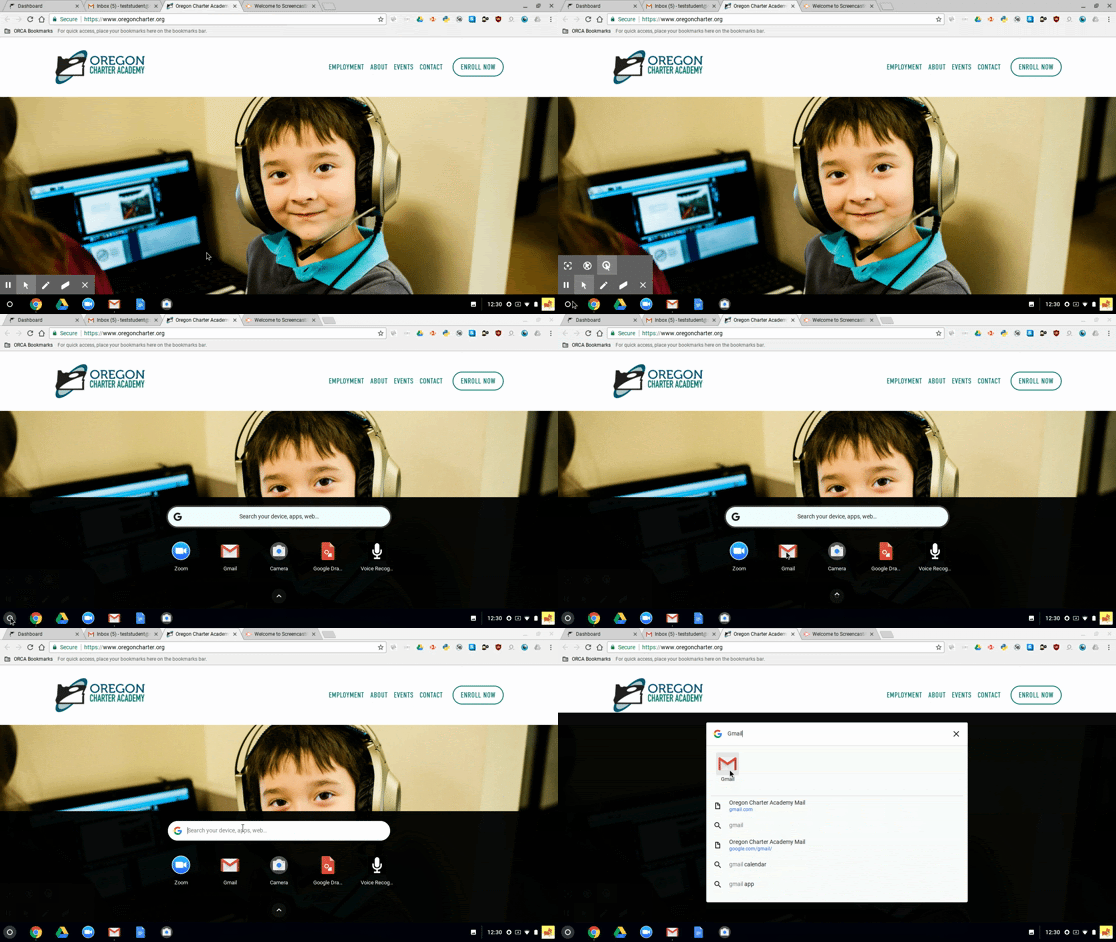
- The first way that you can access the Gmail app is by clicking on the Gmail icon on the dashboard of your Chromebook:

-
- A second way to access Gmail is by using the web browser, Google Chrome, and searching for "Gmail" in the search box of the web browser:

- Lastly, you can access Gmail by clicking on the Launcher (found at the lower left of your Chromebook dashboard), and in the "Search for your device, apps, web..." search box, you can type in "Gmail."
Let's dive into how to use Gmail!
Send emails:
One of the primary uses of Gmail is the ability to send emails. Emails are a beneficial form of communication between you and another person. To send an email:
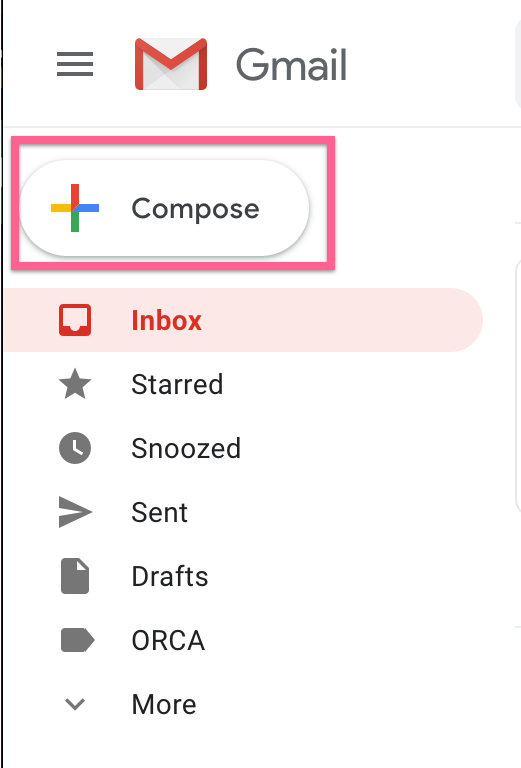
- Click on "Compose" found at the top left of your Gmail account.
- Where it says "To," type in the email address of the person you wish to send an email to.

Students can find the email address of their classmates in Canvas. In your Canvas course, click on the name of a student (such as on the People page or in a discussion). The User page you are taken to will show the person's name, pronouns (if selected), and ORCA email address. - From there, enter a subject title next to where it says "Subject." For example, if you are sending an email to your Math teacher regarding a question about a homework assignment in algebra, you could title the email: "Question about algebra homework.".
- Click your mouse in the empty box area between the "To" and "Send" button, and type in your message.
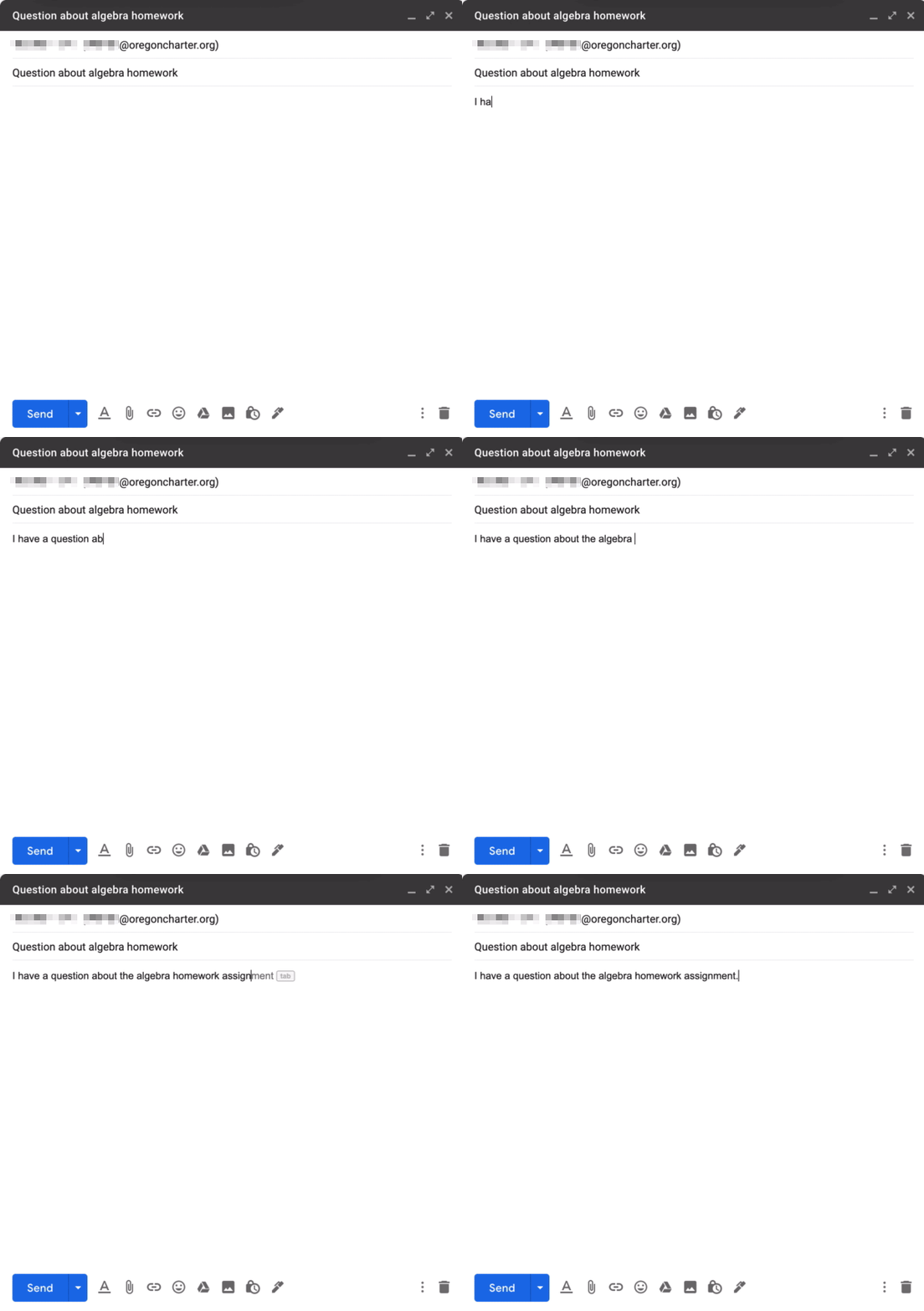
- Once you're done typing up your message, you can click the blue "Send" button! Your email will then send, and you'll be taken back to your Gmail inbox.
Organize emails:
You can organize your emails in various ways.
- You can move an email from your inbox into a label (more on labels later!):

- Delete an email by clicking on the email (1.) and selecting the "Delete" icon (2.).

- You also have the ability to:

Archive - If you want to clean up your inbox without deleting your emails, you can archive them.
Report spam - To block and report harmful messages.
Mark as unread - Marks the email message as unread in your inbox.
Snooze - Snooze mutes an email message and removes the email from the inbox. It can be found in the inbox under the "Snoozed" label.
Add a task - Allows you to create a to-do list in your inbox! You can add a task by clicking on the "Add a task" icon found on the right-side of your Gmail account: 
Move to - Moves a message from your inbox into a label, to the trash, or marks the message as spam.
Labels - Like folders, labels are the "sticky notes" for your inbox. When you tag an email with a label, any emails found under that label will come up. You can tag emails with multiple labels. We'll get into more about labels later in this article.
Manage contacts:
Contacts are the people you communicate with in your Gmail account. Contacts can have information attached to them such as their name, email, address, phone number, birthday, and more. Each Gmail account comes with an area for Contacts. You can locate your Contacts by:
- Clicking on the Google Apps icon found at the top right of your Gmail account. It looks like this:

- From there, click on "Contacts".
- You'll then be taken to a new screen where you have several options. You can
Create contact and Import contacts. As shown in the GIF below, you can create a new contact from scratch by adding in their information manually, or, import contacts if you already have contacts from a prior email account that's been saved in a CSV file. Mass importing contacts can save you a lot of time from having to manually import each one.
- There's also the option to view:
Frequently contacted: Contacts you are in communication with the most.
Directory: A tool to search groups and users inside a Google Apps domain.
Merge & fix: A helpful tool for instances when you have duplicates of the same contact. You can merge those duplicates so there is only one of that Contact instead of multiples.
Create and use labels:
Labels are a great way to organize your emails so they are easily searchable. For example, if you have emails from a certain class, you can label them that class name. That way, if you need to find all the emails from that class, you can search for the label in the search box of your Gmail to locate all emails specified with that label. Let's take a look into how to create them!
- Click on the "More" tab found at the left of your Gmail dashboard and click "Create new label":

- A new pop-up screen will appear where you can create a new label name. Add a name, then press on the blue "Create" button.

If you look to the left of your dashboard, now, you'll be able to find the "algebra" label you recently created!
Another way to create labels by clicking on an unchecked email from your inbox > click on the "Labels"  icon found at the top > select "Create new label".
You can also create labels and nestle them within labels. For example, you can have the label named "algebra", have a nestled label named "assignments", and another nestled label called "algebra notes". This organizes your emails even further to better locate them! We'll use our sample account to show how to set that up:
- Click on "Create new label" found at the bottom of your Gmail dashboard.

- Enter a name for your label. We're calling ours "assignments".
- Check off "Nest label under".
- Select the "algebra" label and click "create".

Now, you'll find "assignments" nestled under your "algebra" label at the left of your Gmail dashboard!
And that's all there is to it!
For more help on how to use Gmail, please reach out to our support team:
How do I get technical support?
How do I find apps on my Chromebook?
How do I use Google Drive?
Comments
0 comments
Article is closed for comments.