
In Canvas, parent, guardian, or learning coach accounts are called "observers accounts." As an observer, you will have limited permissions that allow you to see what is going on in a course without interrupting or participating in the course. Here is what you can and cannot do as an observer in Canvas.
If you haven't already, you can follow this guide to set up your observer account
See the Calendar
Observers can see all student Events and Assignments due on the Calendar, filter the calendar view by the different courses the student is enrolled in, and view undated events and assignments. Observers, however cannot schedule events on their student's calendars -- these events are instead added to the Observer's personal calendar. Observers also will not be able to see whether or assignment is completed on the calendar if they are using Canvas in a web browser. The Canvas parent app, however, will show this on the calendar.
Check out this article for more information on viewing your student's calendar
See the Modules Page
Observers can see how a teacher has organized course content in Modules. They can also see the point values for individual assignments. However, Observers can't submit assignments or quizzes on their students behalf -- this always needs to be done in the student's account.
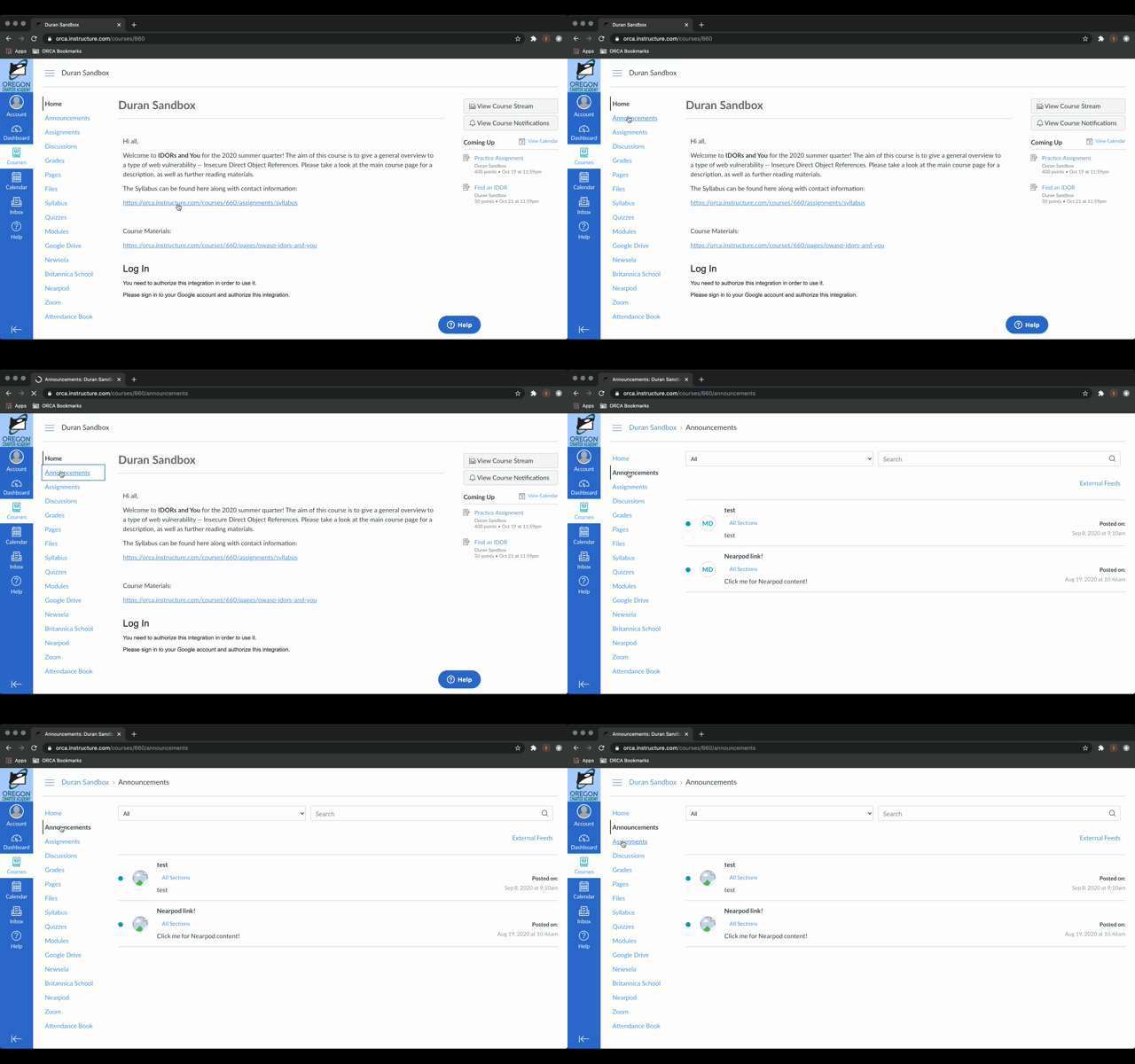
View Course Announcements
Observers can view course announcements by clicking Announcements in the course navigation. Just like students, Observers don't have the ability to respond back to the announcements.
See the Quizzes Page
Observers can see Quiz titles and see the summary of a Quiz. However, much like assignments, Observers cannot take quizzes on behalf of students.
See Canvas Grades
Within a course, Observer's can see their students grades. You can switch between courses by clicking the Course dropdown menu and selecting another course. Observers cannot add comments to graded assignments though, unlike students. Observers can view the submitted assignments as well as any offered feedback for it.
Check out this article for detailed instructions on how to view your student's grades
Access Conversations
Observers can click on the Inbox link to access student Conversations. Observers can view any messages that the teacher or student copied them on. Observers can also message instructors but currently cannot message their students. As of publication, this is a known issue that is being worked on.
This article includes detailed steps on how to message a teacher
If you need to send a file to your student, check out this article
Suggesting a feature
While ORCA does use Canvas, we unfortunately don't have access to the underlying code. This means that we can't always, directly make updates for new features. If you have an idea for a new Observer feature in Canvas, or you know how an existing one might work better, feel free to check out Idea Conversations in the Canvas Community. They are always looking for ways to make their product better for their users!
Have more questions?
Running into something not listed here? Feel free to reach out to our support team!
Comments
0 comments
Article is closed for comments.