
In this article, we will go over how to use the observed student calendars!
You can locate your student's calendar be clicking on "Calendar" on the left side of the dashboard:

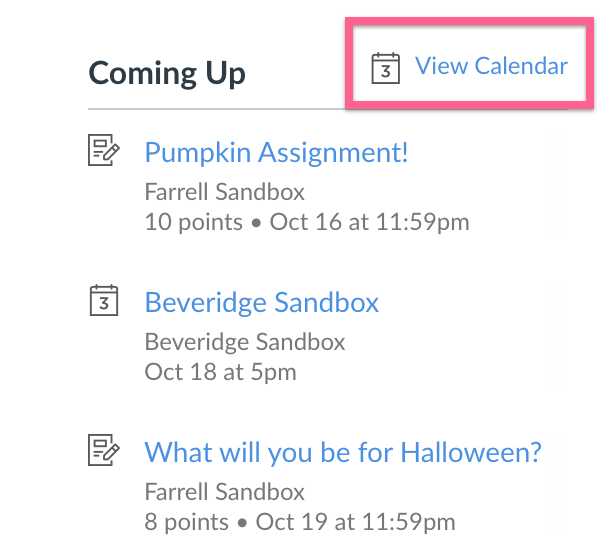
Or, by clicking on "View Calendar" on the top right:
Within the Calendar page, you can change how you view the Calendar by switching between: Week, Month, and Agenda.
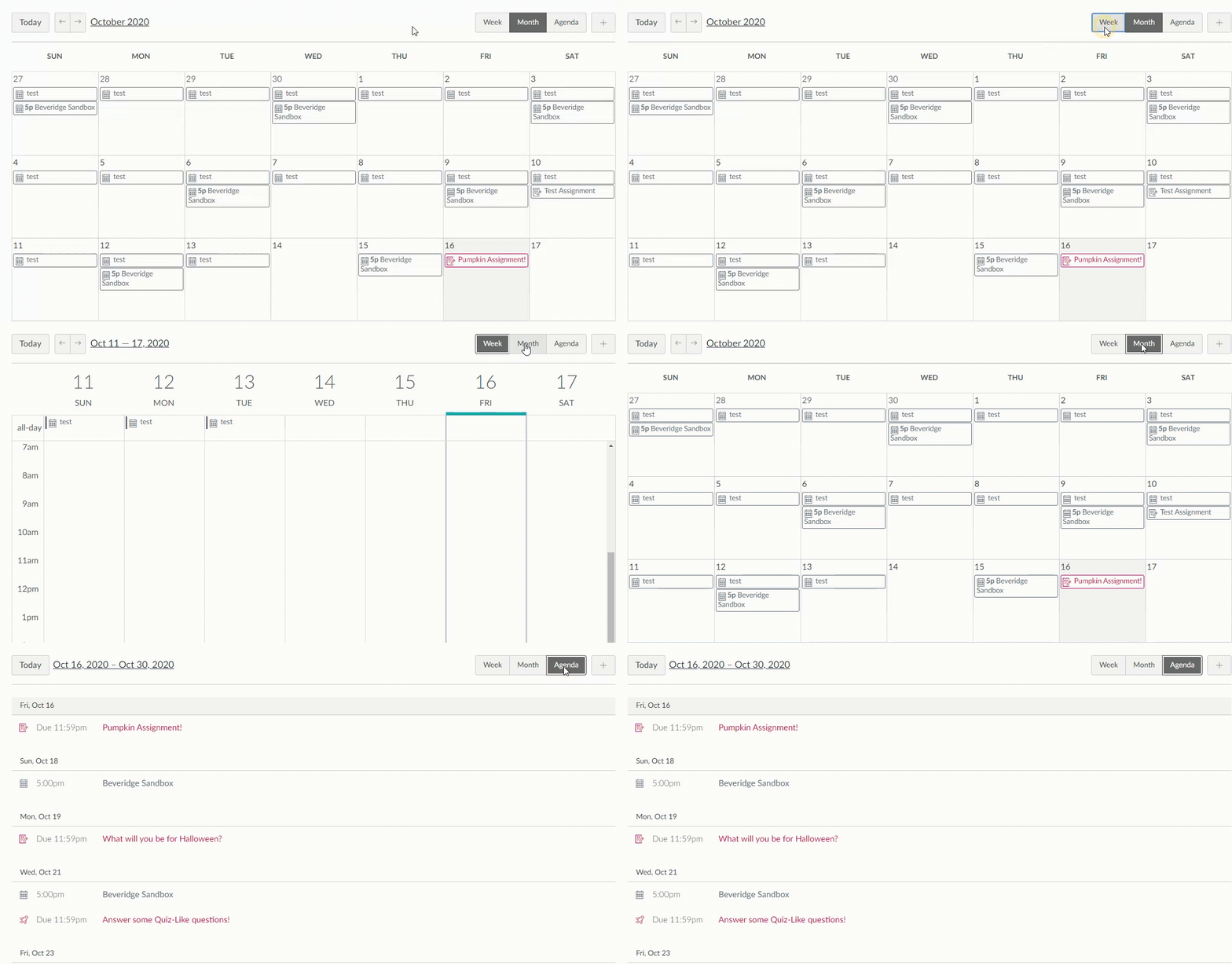
You also have the ability to view different months by clicking the arrows in the upper left corner. To tell different courses apart on the calendar, you can set up your own custom coloring for each course. This is helpful for parents/guardians who are observing more than 2+ students. For example, you can make one student's courses on the calendar all one color, and another student's courses on the calendar all another color!

Another helpful tip - you can add your student's calendar feed to your calendar feed! Just click on the "Calendar Feed" on the right of the calendar, and copy/paste the link onto any calendar app that takes iCal feeds.

The following article includes detailed steps on how to link your Canvas calendar feed to Google Calendar: How do I view more than 10 classes in Canvas Calendar?
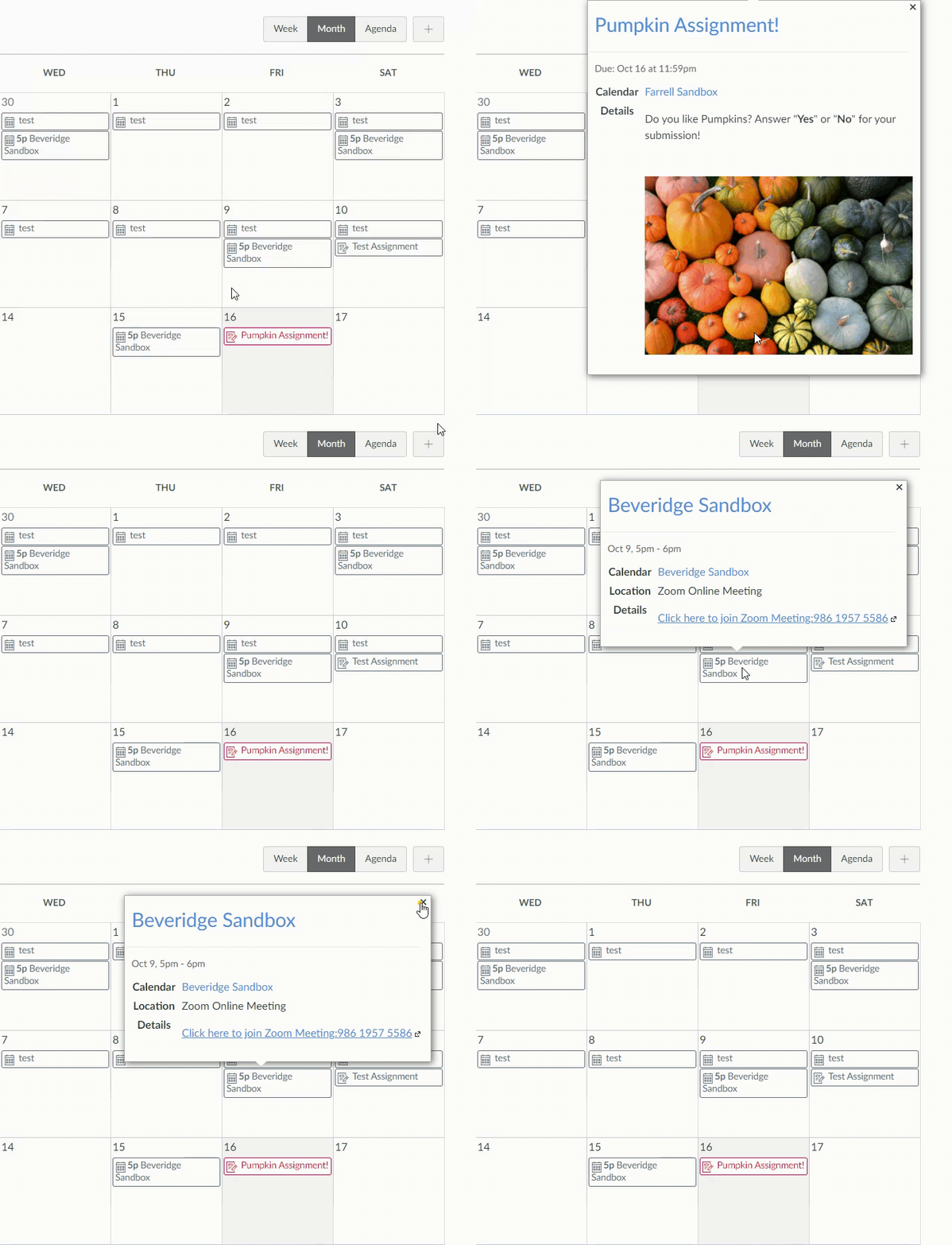
Lastly, you can click on each event on the calendar to view more information for each event, live class, or assignment.
That's all there is to it!
If you're running into any issues with these steps do not hesitate to reach out to our support team! Take a look at the article below to see how you can reach us:
How do I get technical support?
You can also check out our Observer Day in the Life course for a more in depth look into Observer Accounts.
Comments
0 comments
Article is closed for comments.