
If you ever need to message a teacher, you can do so through the "Inbox" in your Canvas observer account. This guide will walk you through how to do so!
Canvas Inbox
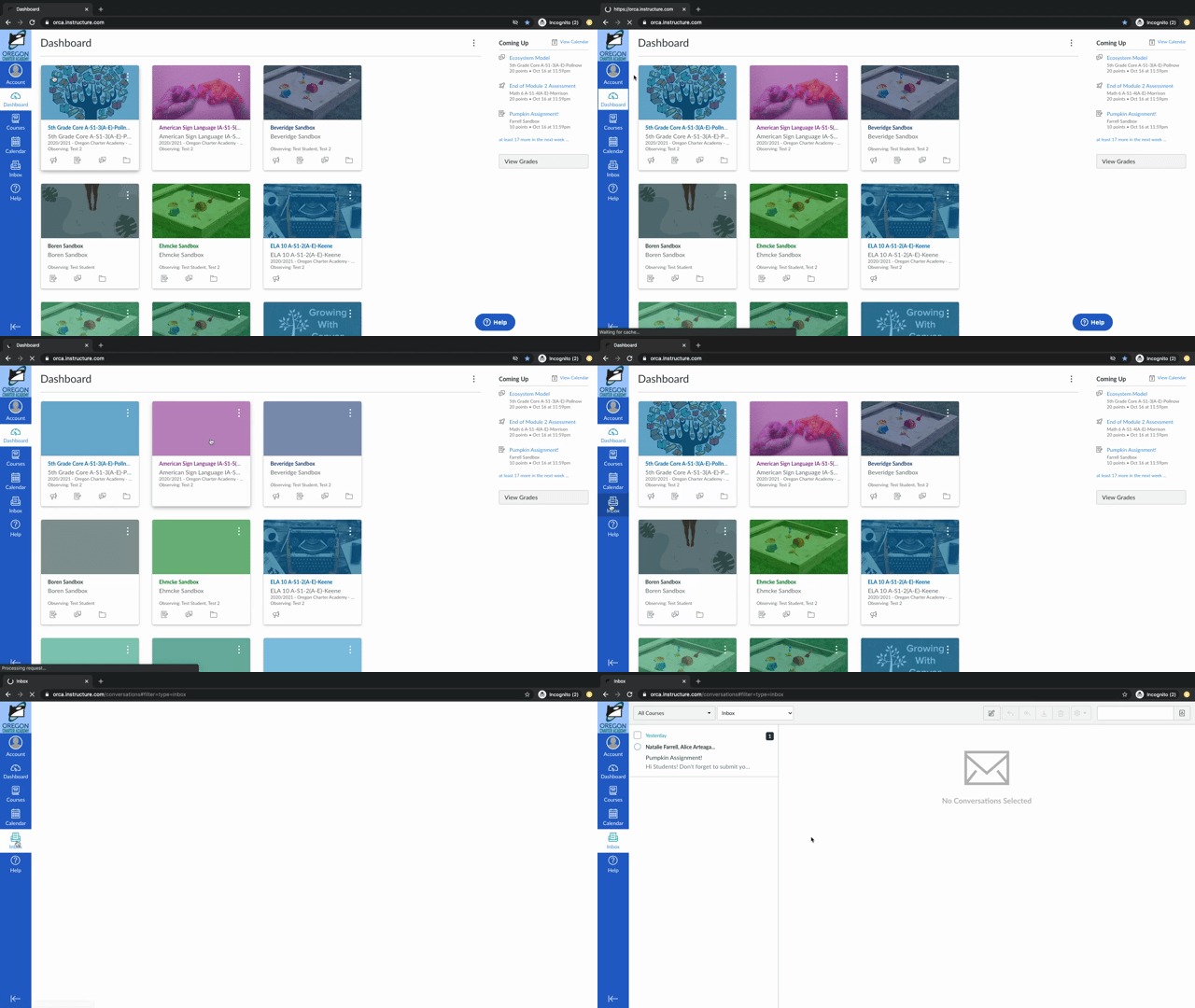
When you are logged into your Canvas observer account you will see an "Inbox" button in the sidebar on the left. This will take you to your Canvas "Conversations" where you can message back and forth with teachers.
Compose Message
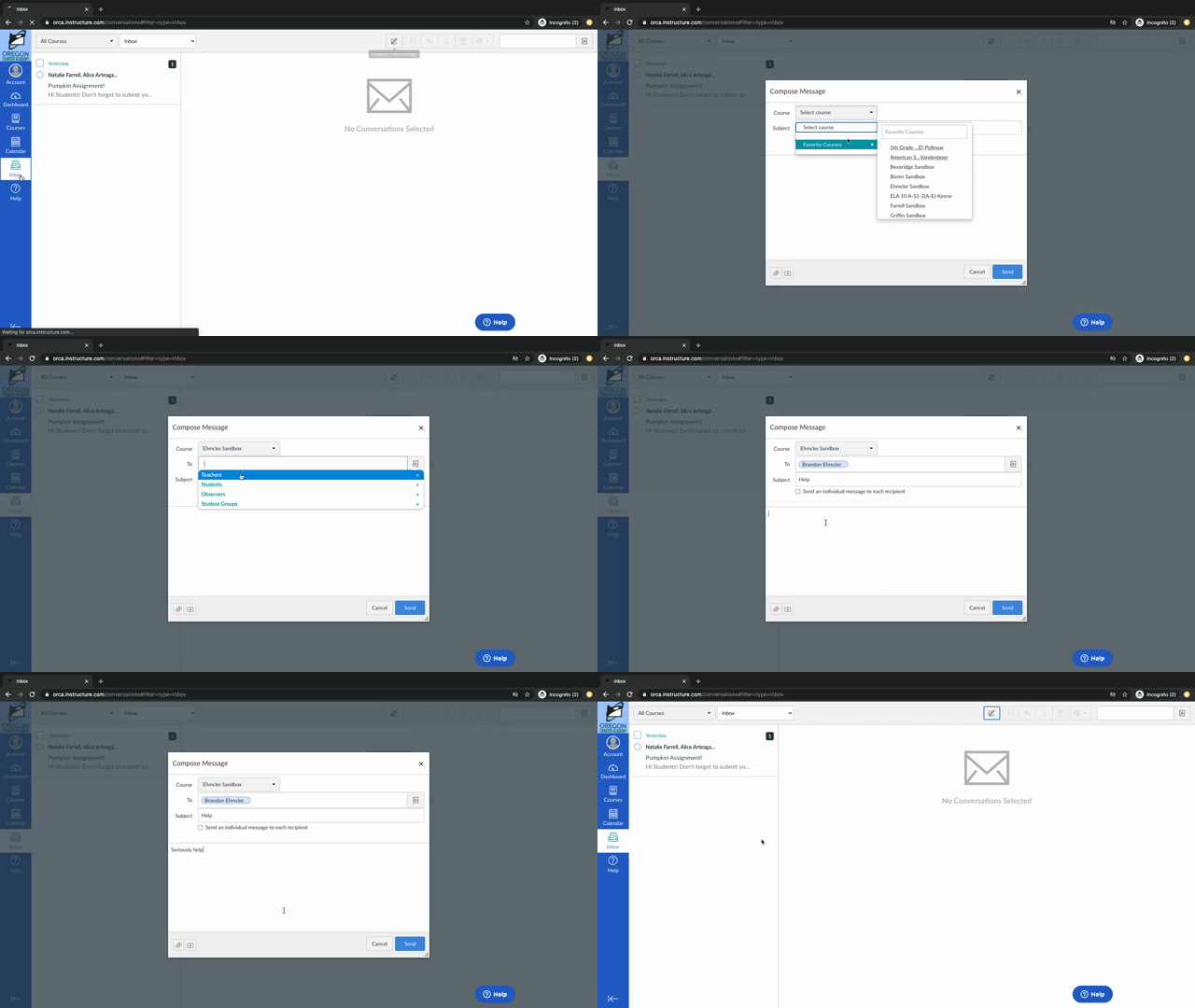
Once you are in your inbox, you can create a new message by clicking the  icon in the top bar of the page. This opens the Compose Message window so that you can begin writing to the teacher!
Once you have finished your message, you can click "Select Course" to pull up a drop down menu of courses your observed students are in. Select the course with the teacher you wish to message.
This will bring up the "To:" field below. click on the  icon to the right of this field to open the address book. From here you can click on Teachers, then click on the teacher name to select them as who you are sending this message to. You can also click the
  at the bottom of the message to attach a file. As long as the subject line and message are filled out you can now click on Send to send your message!
NOTE: Observers cannot add observed students to messages, but the teachers can when they respond upon request.
Need more help?
If you need further assistance with observing or messaging in Canvas, please feel free to reach out to us. Read this article for instructions on how to get ahold of the helpdesk team!
You can also check out our Observer Day in the Life course for a more in depth look into Observer Accounts.
Comments
0 comments
Article is closed for comments.