
EdPuzzle has a Chrome extension! This tool is useful for grabbing videos and editing them into EdPuzzle, and from Canvas, using the "External Tool" to upload that content into your Canvas course.
Below are steps on how to use EdPuzzle.
How to install the EdPuzzle Chrome extension
- Go to the Chrome extension page and click on the blue "Add to Chrome" button on the top right of the page.

- A pop up will show up where you click on "Add extension".
- Another pop up will say "Edpuzzle wants to use your microphone and camera". Click on "Allow".

- Once you get to the "Welcome, Teacher! Your students are waiting for some magic..." screen, choose to Sign in with Google found towards the bottom of the page. Then, follow the steps to select your ORCA Gmail account to sign in.
Now you're in! You should find yourself at the dashboard of your edpuzzle.com/content page. This will be the main page you'll see when you want to add new Videos and Projects into EdPuzzle.
How to record videos using EdPuzzle
With the EdPuzzle extension, you can record videos to use for your lessons. Like Screencastify, EdPuzzle allows you the ability to record your Browser Tab, Desktop, or just use the Camera Only so that it's just of you. Here's how to use these features:
- Locate the EdPuzzle extension by going to the top right of your browser next to your Chrome profile icon. You should see the yellow EdPuzzle icon next to the extensions grey puzzle icon. If it's not shown where the GIF below shows the extension icon, click on the extensions grey puzzle icon (
 ) and click on EdPuzzle from there.
 - Like Screencastify, a pop up screen appears with the ability to "Start recording". Choose "Tab" if you want to record your Chrome browser tab. Choose "Desktop" to record your entire computer desktop. Lastly, press "Camera only" if you want it to record only you.
You'll also want to adjust the correct Microphone input and Camera. It should automatically depict your MacBook's default mic and camera, so there shouldn't be any further adjustments needed, but in case you have your own personal mic and headset that you want to use, you'll want to make sure it's connected properly with EdPuzzle.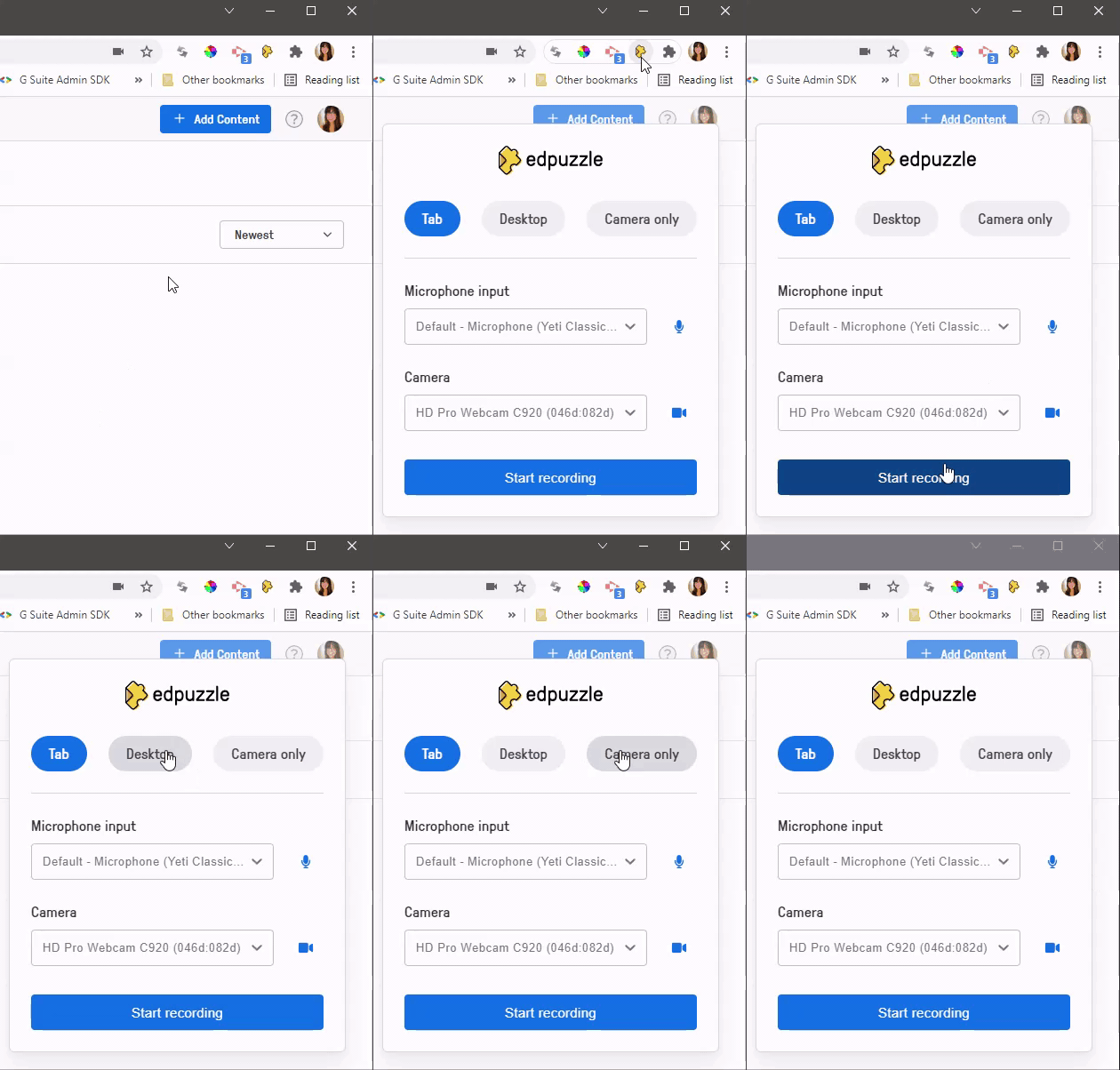
- Now, you're ready to start recording! Press that blue "Start recording" button!
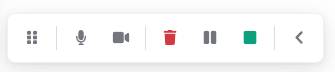
- Once you start recording, you'll get a little menu on the bottom left with options to turn on or off your camera, to mute yourself, pause, stop recording, or trash recording. Once you're finished with the recording, press the green "Stop" square button.
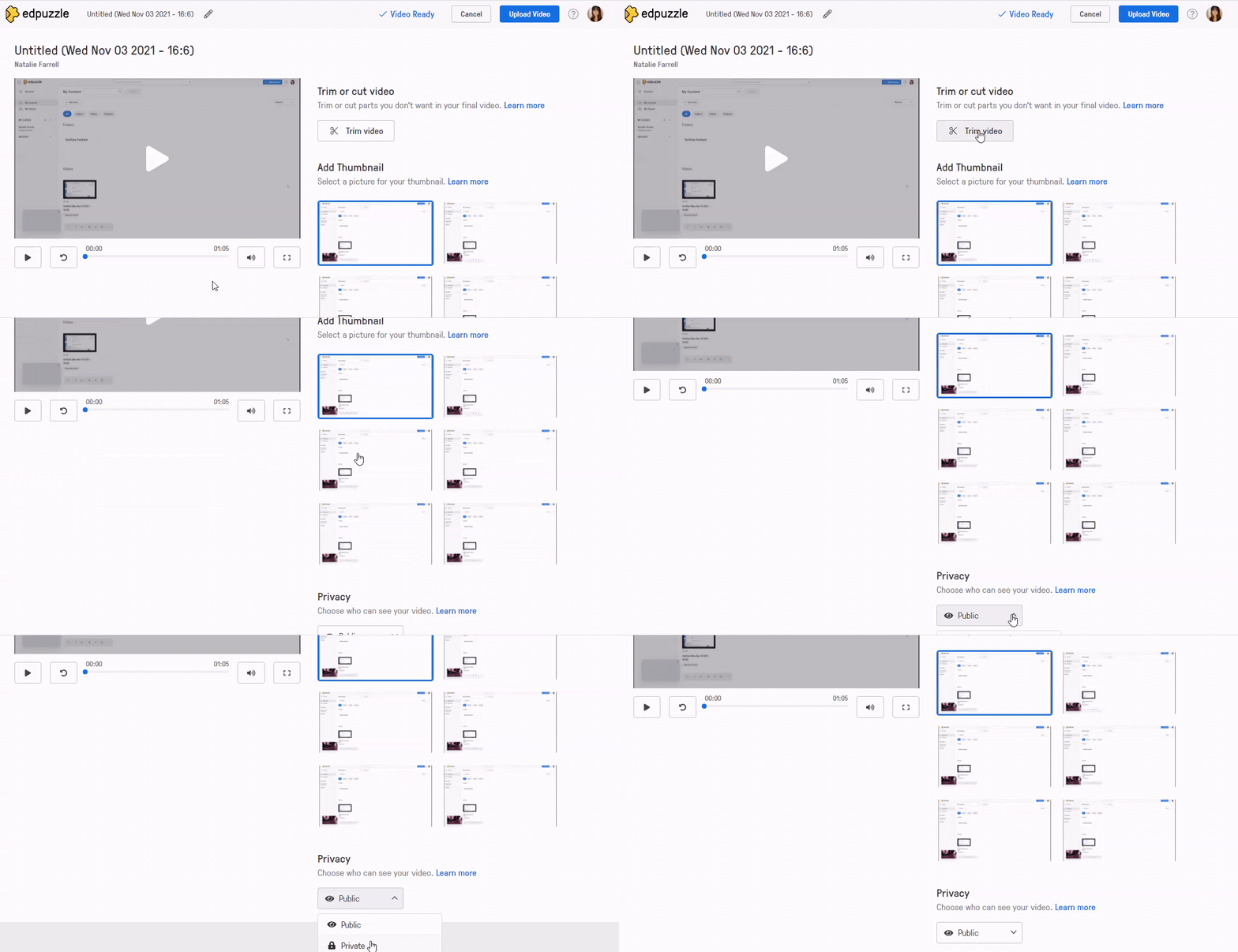
- EdPuzzle will then take you to another tab with your freshly recording video. You can trim or cut the video, and choose the privacy of it.
You can find your video in EdPuzzle under My Content > Videos.
How to import a video from YouTube into EdPuzzle
Now that you have EdPuzzle's extension installed, you can search in YouTube to pull educational videos from them and post them into your Canvas course content!
- Search on YouTube for the video you want to use, and then copy the URL for that YouTube video.
- In EdPuzzle, paste the YouTube URL into the search bar found at the top of the dashboard. Then, press "Search".

Another way to grab a video from YouTube to use with EdPuzzle (and is pretty convenient) is to click on the "Edit with edpuzzle" yellow button found underneath the YouTube video:
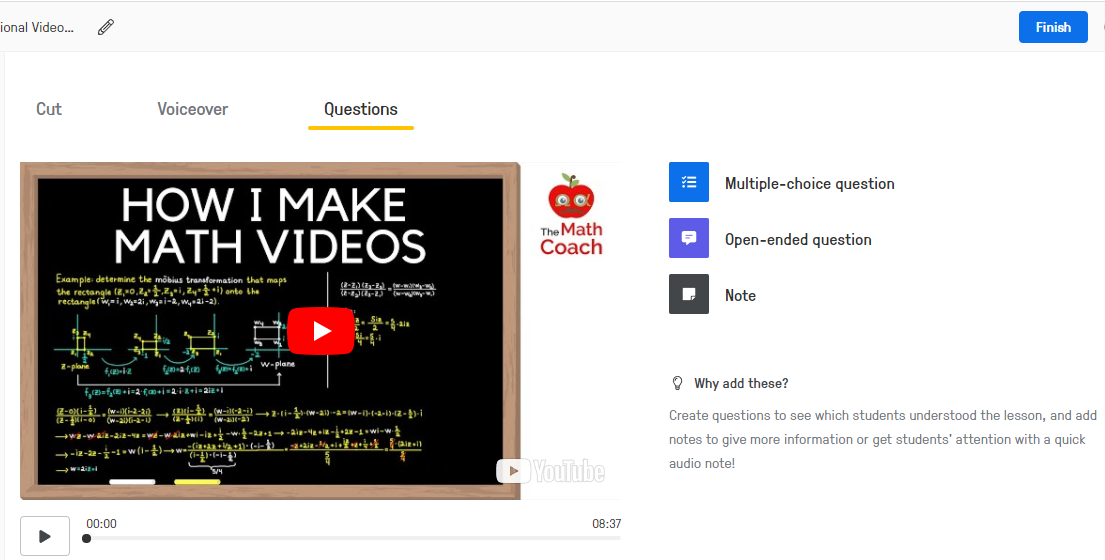
- Either of the above routes will take you to the video editing page. You can choose to cut the video if you want to only a part of the video, or keep it as is. Voiceovers are not permitted due to YouTube's terms. However, you can add multiple-choice questions, an open-ended question, or a note with that video to include in your assignment.
- Once you are done setting up your content, you can press "Finish" found at the top right.
- Now, head over to My Content > Videos and you'll find your YouTube educational video.
- Go to your course in Canvas and choose to add a new Assignment.
- Within your assignment, choose "Submission type" as "External Tool".
- Click "Find" and choose "EdPuzzle".
- Click on your new educational video, click next, and choose "Assign".
- Click on "Select" so that it uses the link to that educational video, and then click "Save" on your assignment. Like magic, you have your educational YouTube video!

These videos will be viewable for students on their Chromebooks! Because it's used by EdPuzzle, students will only be able to view these YouTube videos through EdPuzzle and not through YouTube itself.
If you run into any issues using the EdPuzzle Chrome Extension process, please reach out to the Tech Team for assistance:
How do I get technical support?
Comments
0 comments
Article is closed for comments.