
If you ever need to access your student ID, follow these steps to view it:
- Open up Google Contacts in either of the following ways:
- Go to contacts.google.com
- Open up the Google Apps menu in Chrome, and select "Contacts"
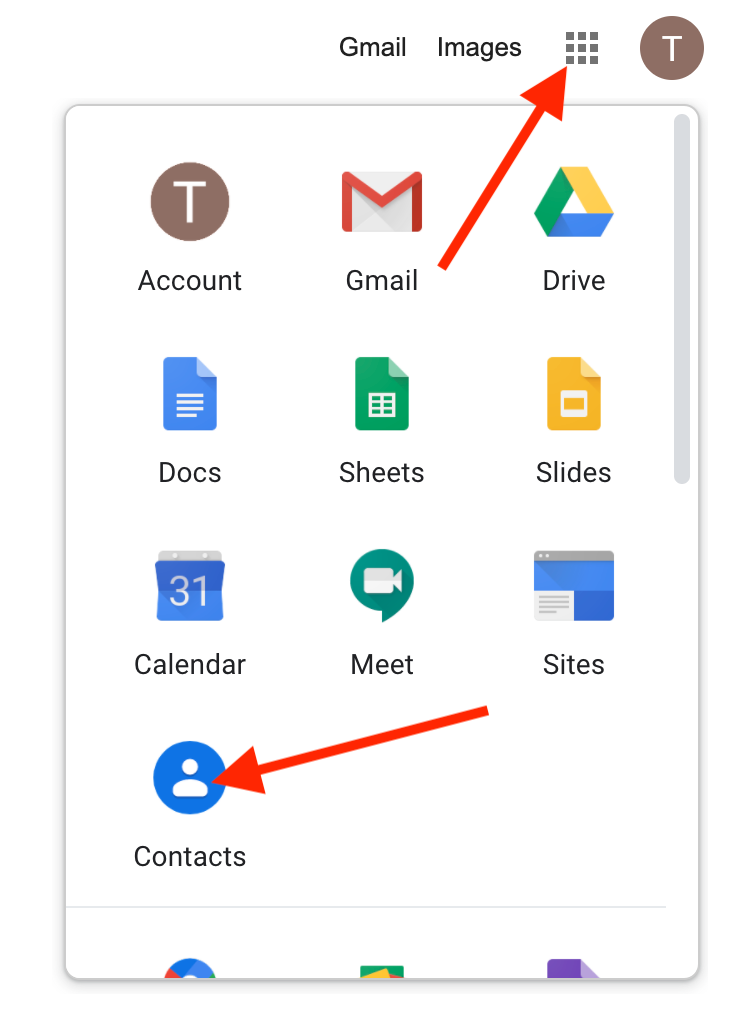
Note: you can also get to this directory search by clicking on your PowerSchool ID Search bookmark in your ORCA Bookmarks folder.
If you haven't looked up your student ID before:
You should see the following screen when you open your contacts. Click, Create contact to make a new contact for yourself.

In the window that opens, enter your student email address, and click save.

After you click save, the window for your contact will automatically open. You will see your ID listed in your profile as "Student ID."

If you have looked up your student ID before:
You can skip the steps above, since you have already created a contact for yourself. Instead, in Google Contacts, search for yourself using the search bar at the top of the screen, and click on your account in the drop down menu that appears.
- You can search for yourself by typing in either your name, or your email
- If multiple people are coming up when you search for your name, try searching for your email

- Once you click on your account, your "Directory Profile" will appear. Note: Only your logged in student can see their own ID in this search, This info is hidden for all others.
With your directory profile open, you will see your student ID listed as your Celver ID.
If you are having any trouble finding your student ID, don't hesitate to reach for technical support. The following article includes details on how to get in touch with the Tech Team:
How do I get technical support?
Comments
0 comments
Article is closed for comments.