
Trying to access what you need as a student in ORCA, but do not have your supplied Chromebook? Here is a quick breakdown on how to access the few places you will need to be successful if you are on a Mac device! (iPhone, iPad etc.)
Login to ORCA Chrome Account and Sync
Download & install Chrome
ORCA supports one browser across all devices which is Google Chrome. Let's get this installed so that we can get everything set up! Go to the google download page by clicking here. On this new page tap on the blue GET button.
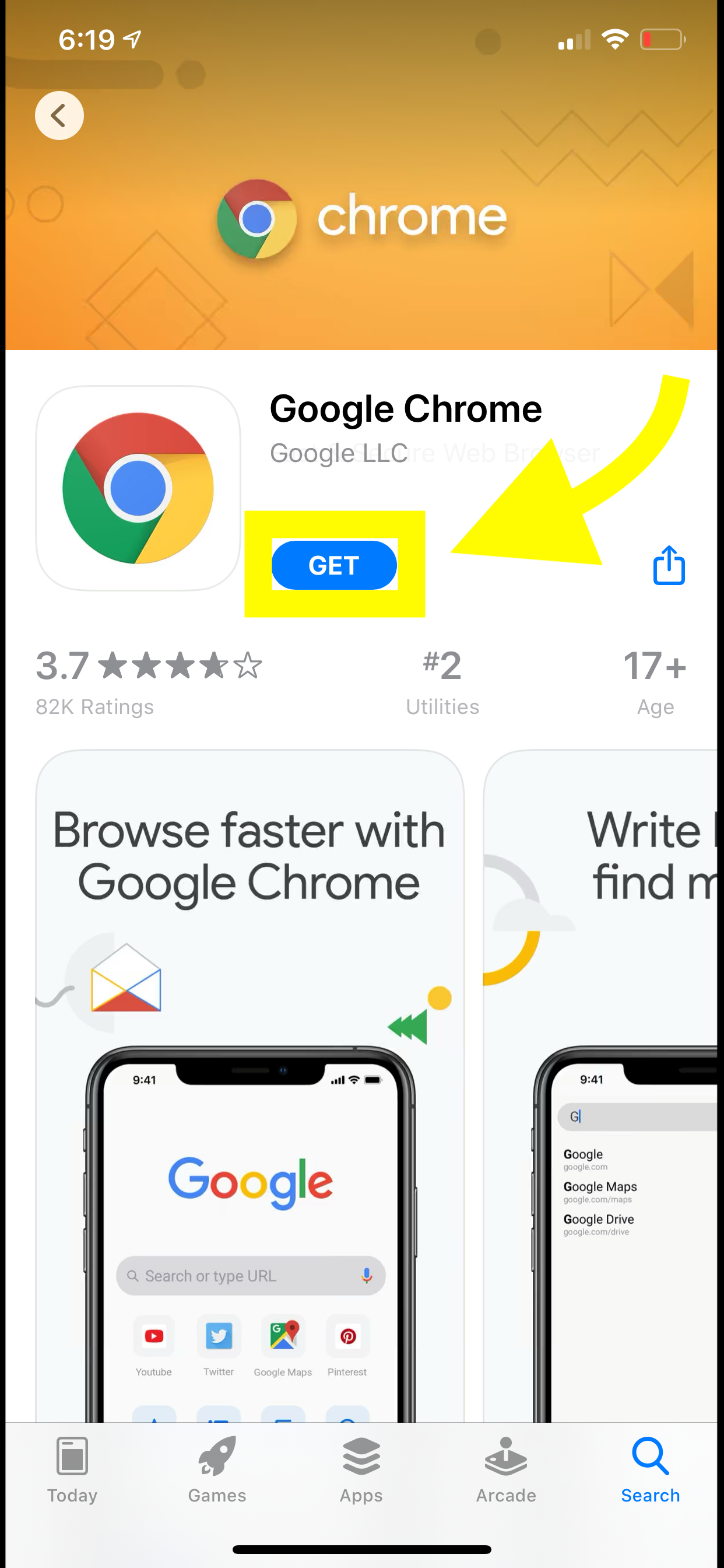
The next screen says "Welcome to Chrome". Go ahead and tap on Accept and Continue.

You now have Chrome! This app will be on your iOS device's home page, but for now if you are still on the download page the blue GET button should now say OPEN, tap on this to open Chrome.
Login to ORCA Chrome Account and Sync
Now, we need to log in to the Google account that ORCA has created for you! On your new Chrome app, tap on the profile image at the top-right of the page.
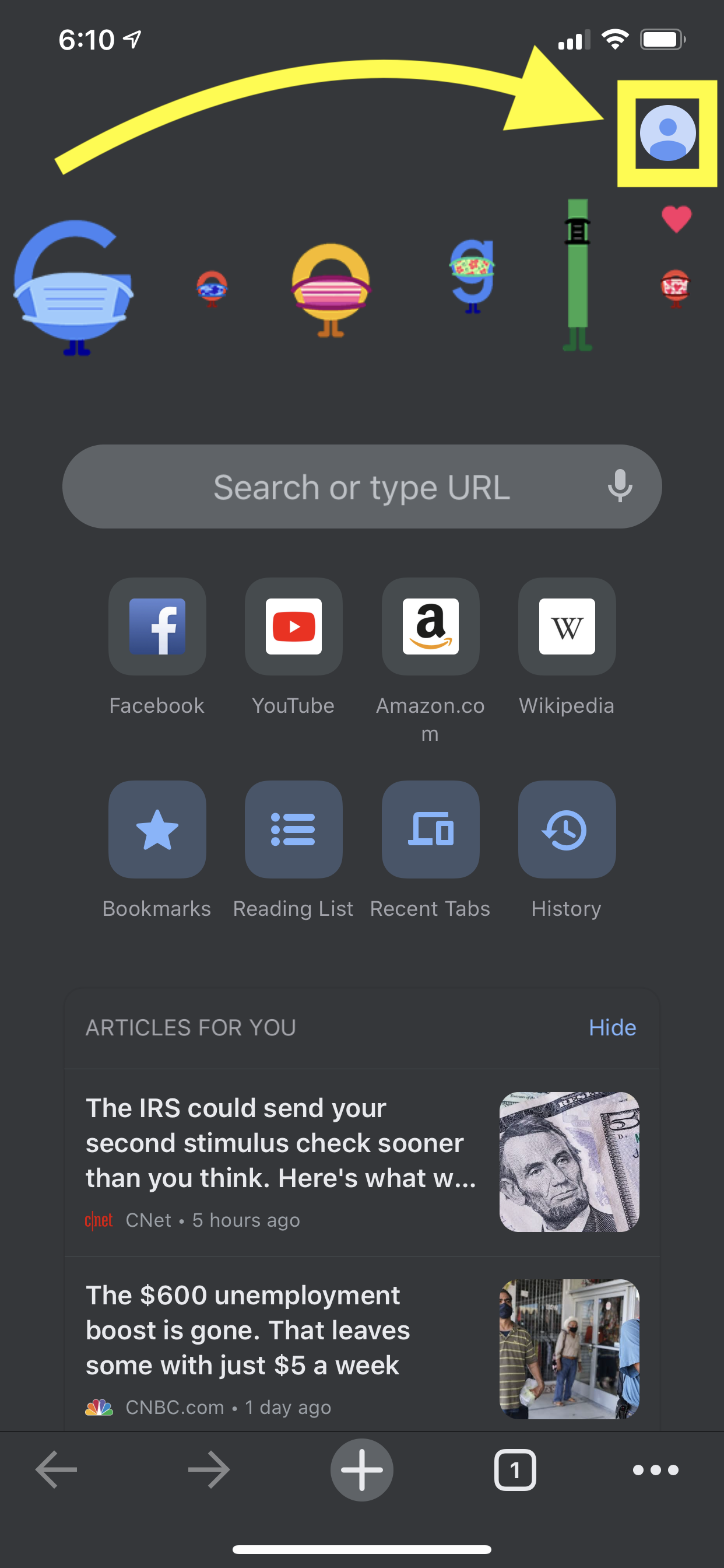
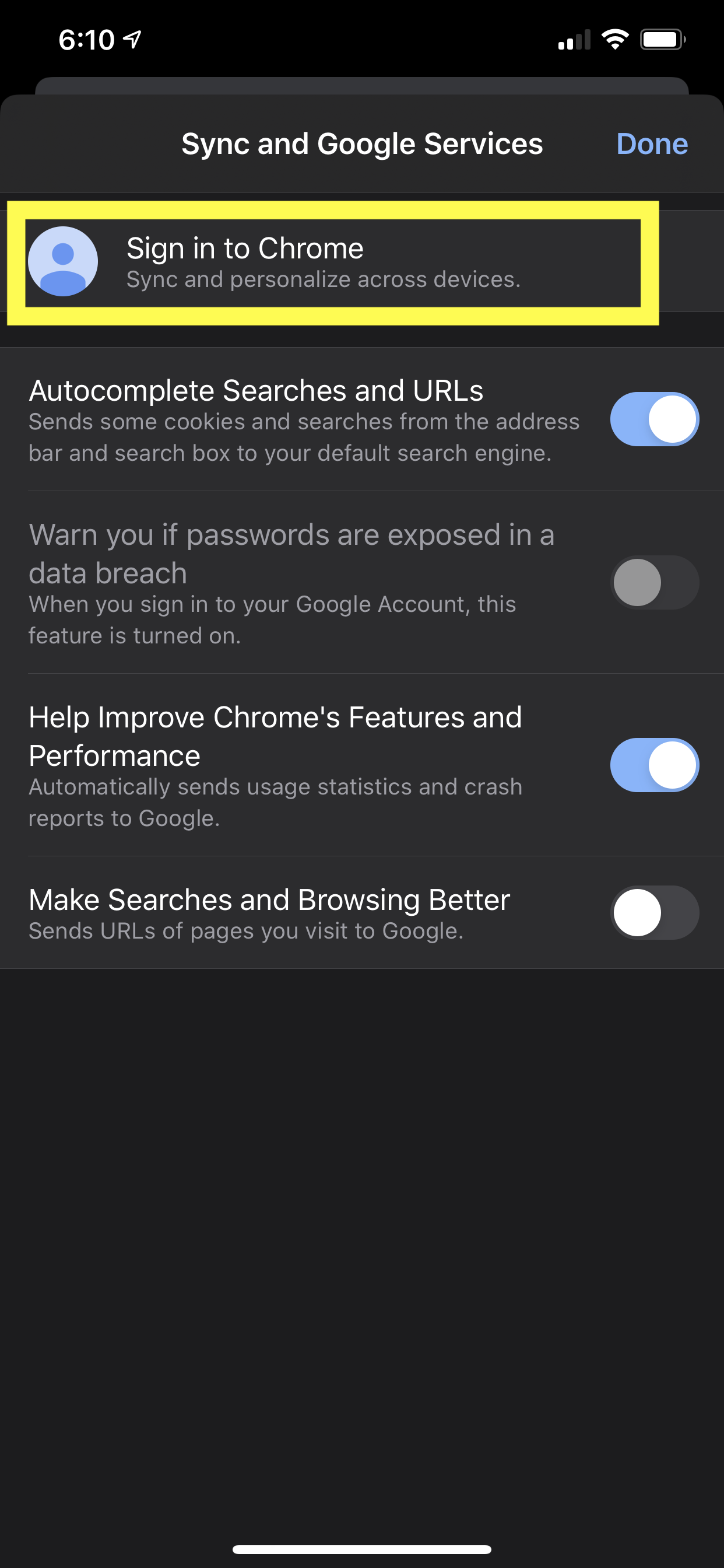
Next, tap on Sign in to Chrome.
Tap on Add Account...
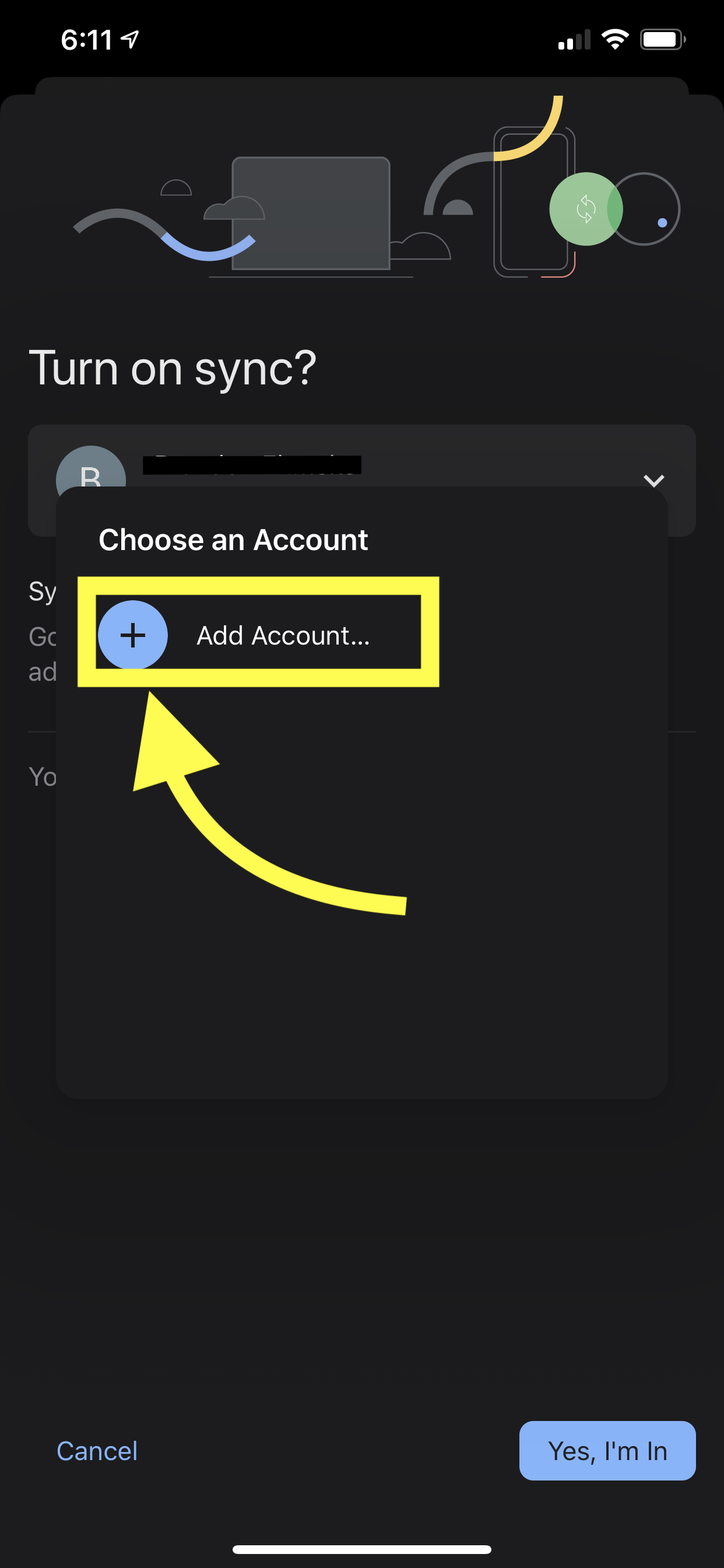
From there, you should be at a sign-in page. Here you will enter the email and password that ORCA supplied you as a new student in the ORCA welcome email. Go ahead and enter those and click next.
You will see that chrome is telling you that you are signing into a "managed account". This is the ORCA account set up for you! Tap on Accept and sign in.
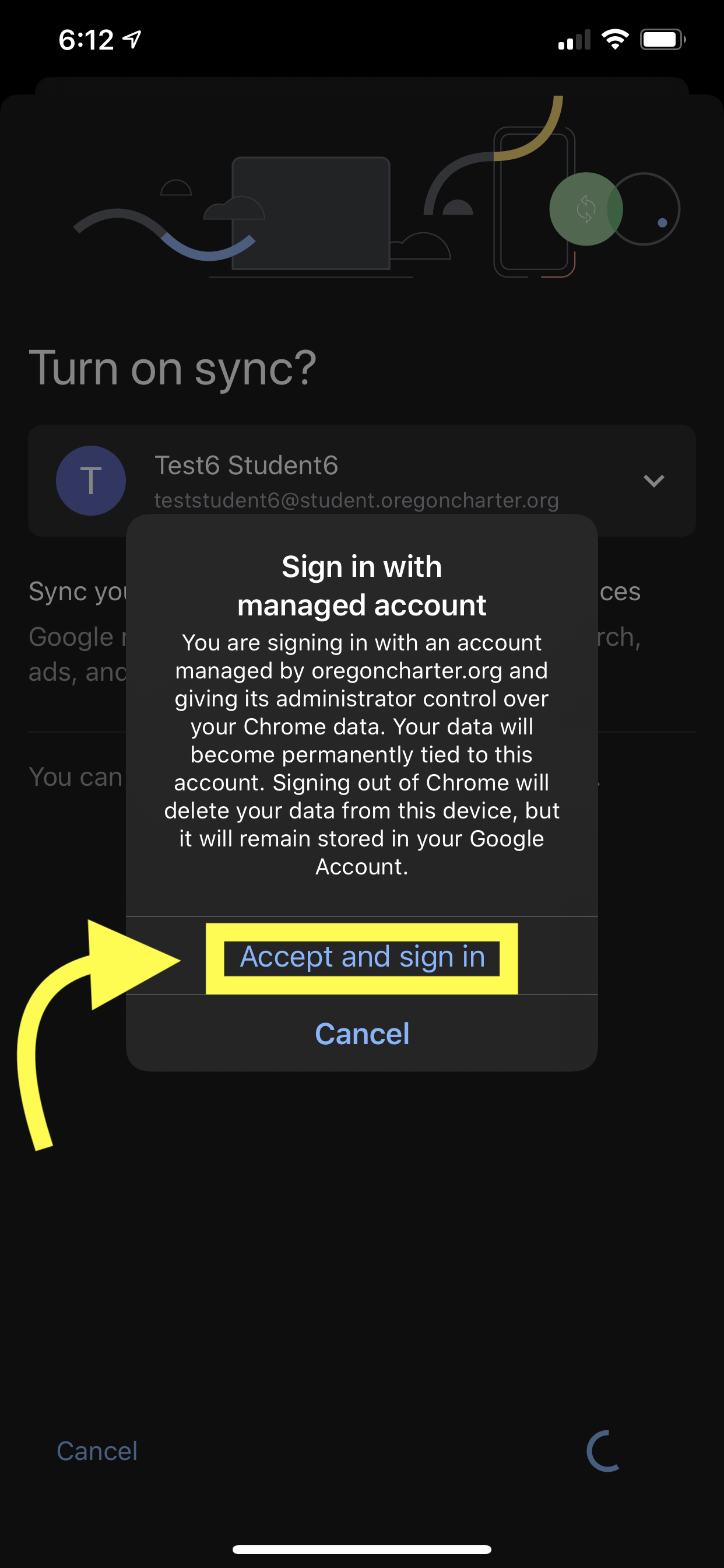
HERE IS THE IMPORTANT PART:
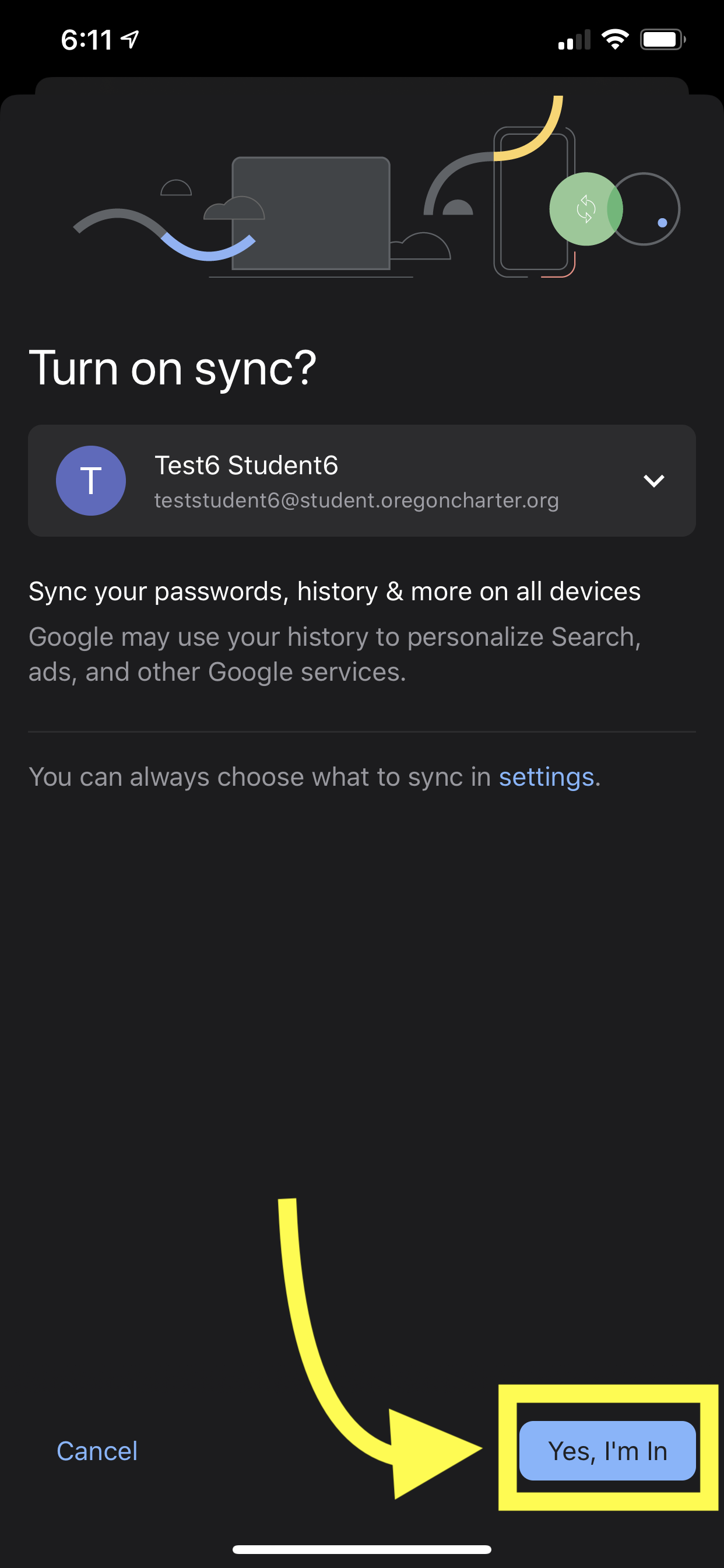
Make sure after signing in that you tap on Yes, I'm in on the next screen. This will connect your ORCA account to this new profile you have with Chrome on iOS. Now, you should have a much easier time signing into different ORCA sites you will need for school.
Canvas
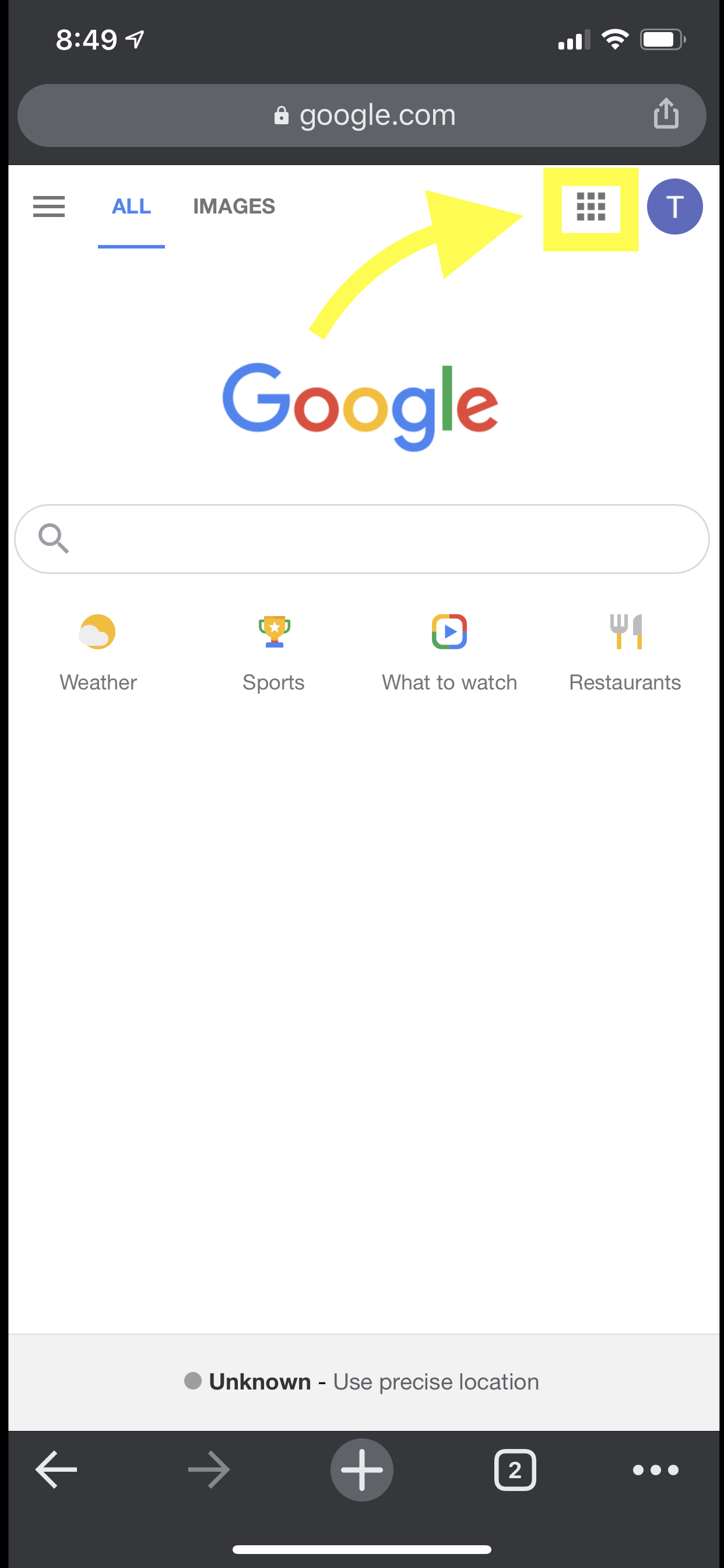
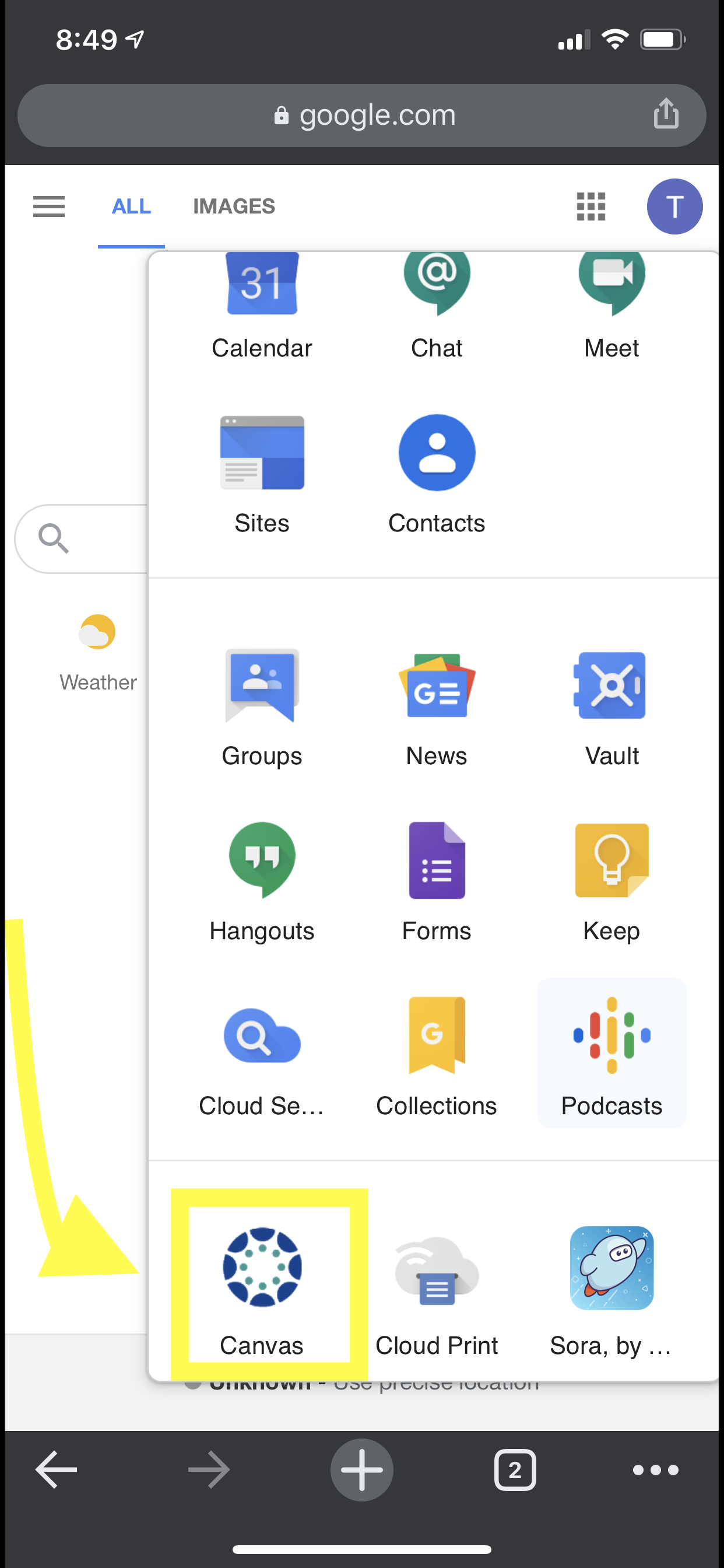
Next, let's introduce you to Canvas. If you have made it this far, you should already have a Canvas account that has been created for you! After signing into your account, you should be on the google home page. If not tap here to get there! You will see at the top right of the page there is a small square made up of nine dots, tap that square. A pop up window will open that shows all of your apps attached to your google account from ORCA. This is where you can access your Gmail (E-mail) and many other apps. Scroll down and tap on Canvas.
You are now at your Canvas Dashboard! You should be automatically logged in. Here, you can see all of the courses you are currently enrolled in. The first course for everyone to tackle as soon as possible is the ORCA Family Orientation course!
For easy access to get back to Canvas, let's make a Bookmark! When you are on your Canvas dashboard, tap on the button at the bottom right that looks like three dots in a row:  . In the pop-up menu, scroll down to Bookmark with a little
  next to it.
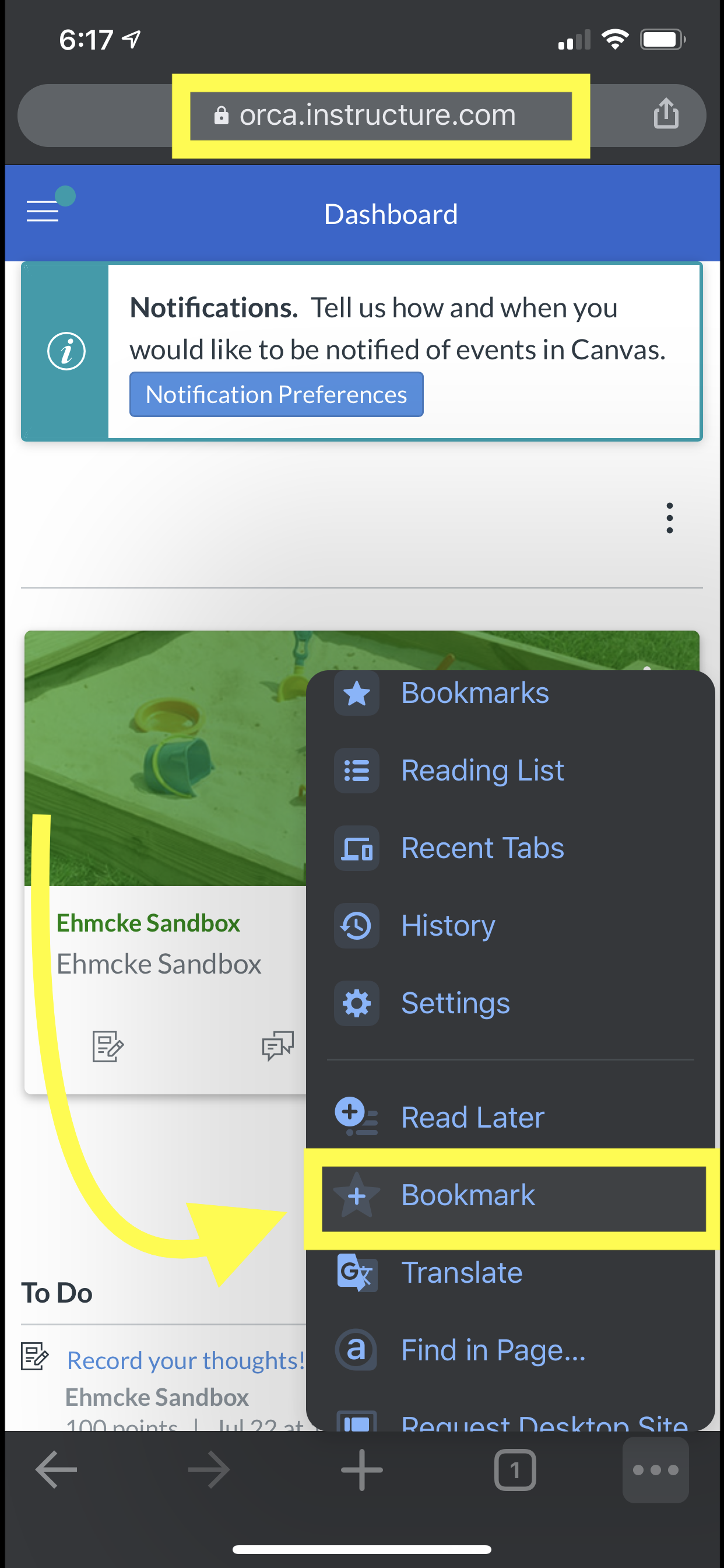
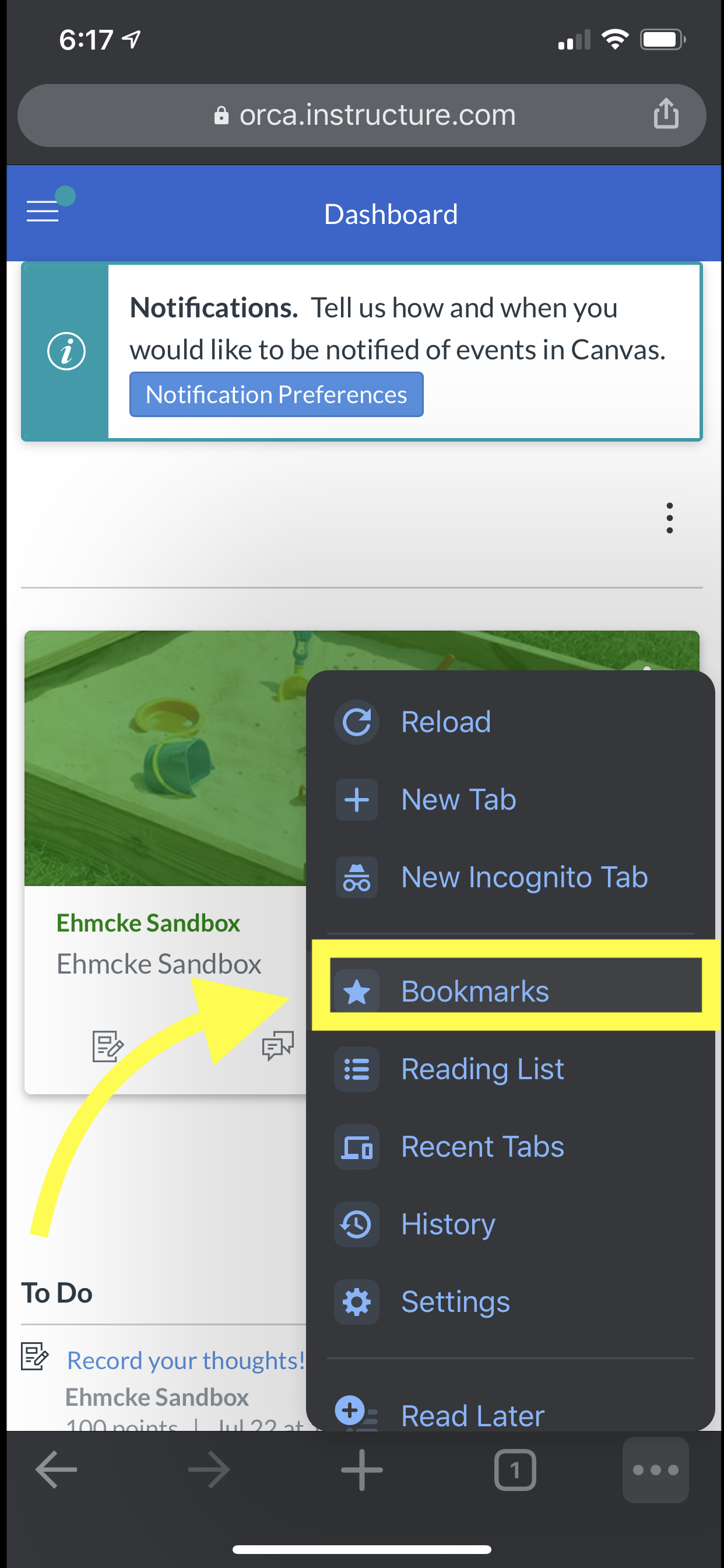
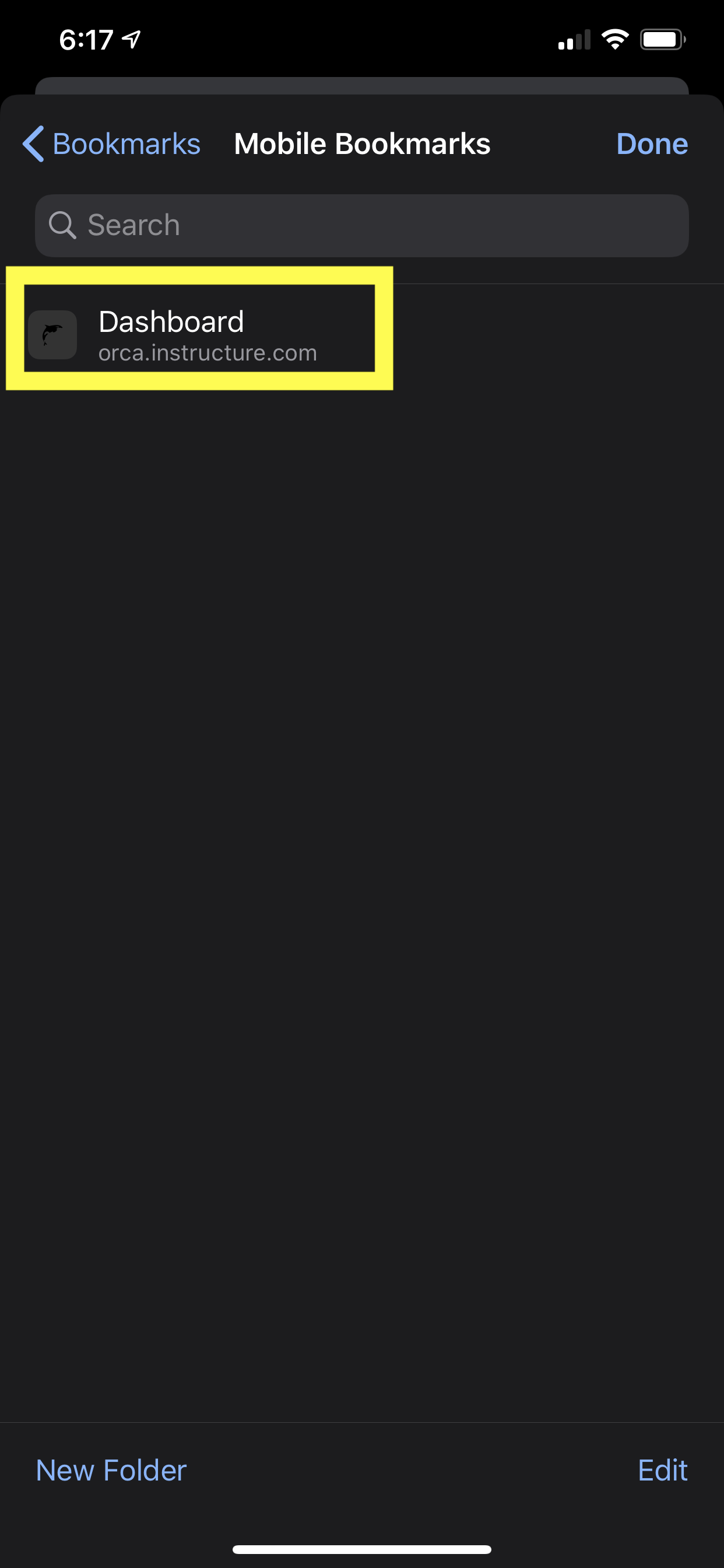
You now have a bookmark of your Canvas course saved to Chrome! But how do you access that later? Open the  menu again and this time click on Bookmarks instead of Bookmark. This will show your bookmarks you have saved. The bookmark titled Dashboard is your Canvas Dashboard page. Tap on that at any time to get back to your canvas courses!
Zoom

If you're running into any issues with these steps, do not hesitate to reach out to our support team! Take a look at the article below to see how you can reach us.
Comments
0 comments
Article is closed for comments.