
Screencastify is a wonderful tool that everyone has ready to go! This tool allows you to record your computer screen, and then share that video or even upload it to some assignments! Whether you are logged into your Chromebook supplied by ORCA, or even just logged into your student Chrome profile you have the ability to use Screencastify.
All of your Screencastify recordings go directly to your personal Google drive. Once you have a video recorded how do we share that with others? The steps below walk you through how to do just that!
Sharing from Google drive
When you open Google Drive after recording your first Screencastify recording you will notice that there is now a Screencastify folder! This folder is where you will find all current and future recordings.

Find the video in the Screencastify folder that you would like to share and click on it to select it. With the video selected you can open the sharing settings by clicking on the  icon at the top-right of the browser tab.

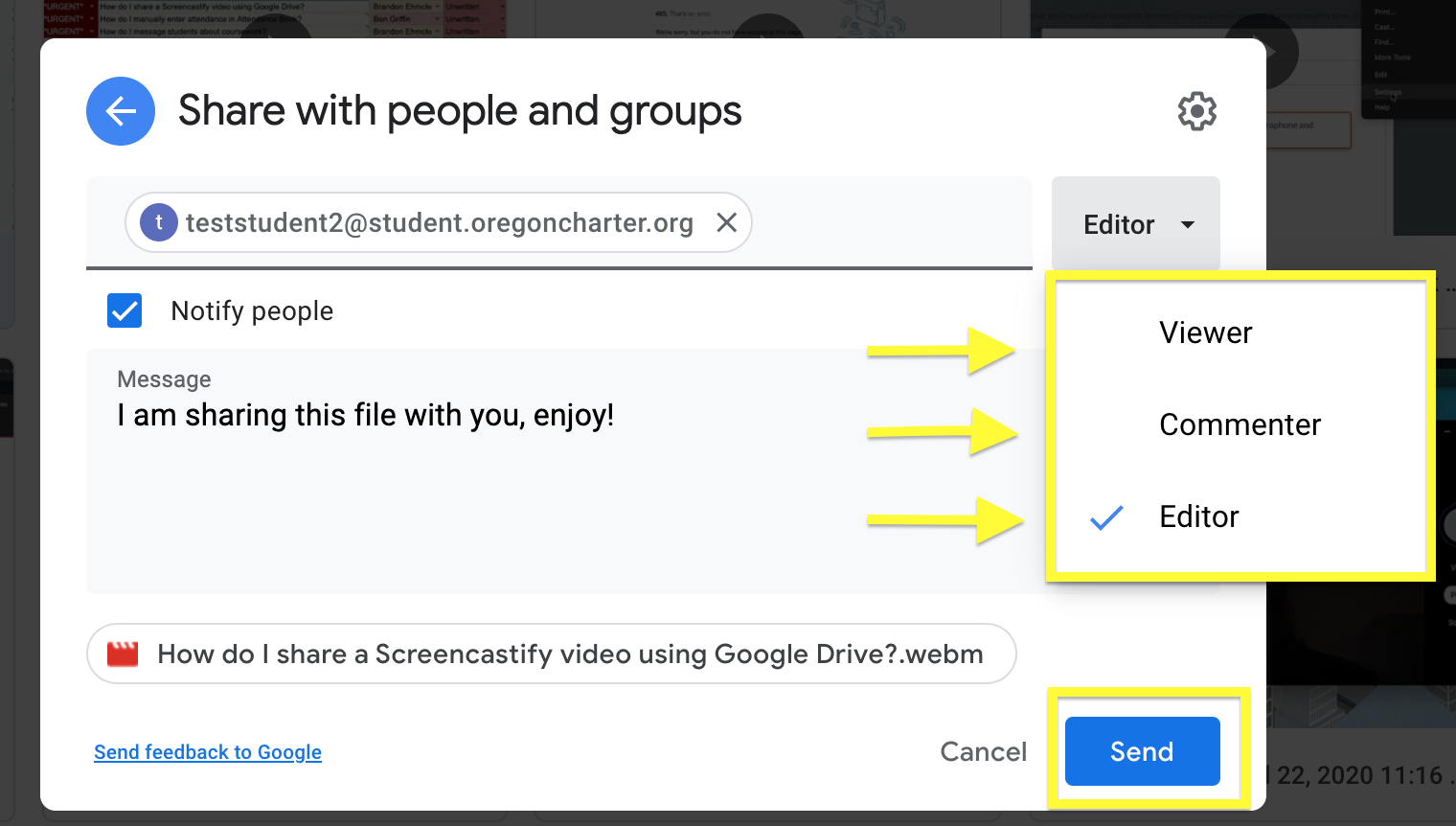
With the sharing settings open you can choose to either share with one or more people directly to their "shared" google drive, or copy the exact link to your video to share elsewhere. If you wish to share to others within Google drive, simple type in their name or email in the bar below Share with people and groups.
You can choose to make these chosen people a Viewer, Commentor or Editor. Viewers can only view the chosen file, Commenters can view and leave comments, Editors can actually edit the file themselves.
If you cannot find the person you are looking for, or simply want to share the video outside of Google Drive, you can select Copy link below under the "Get link" section. You can also click change under "Get link" to select the same Viewer, Commenter and Editor options for the link.

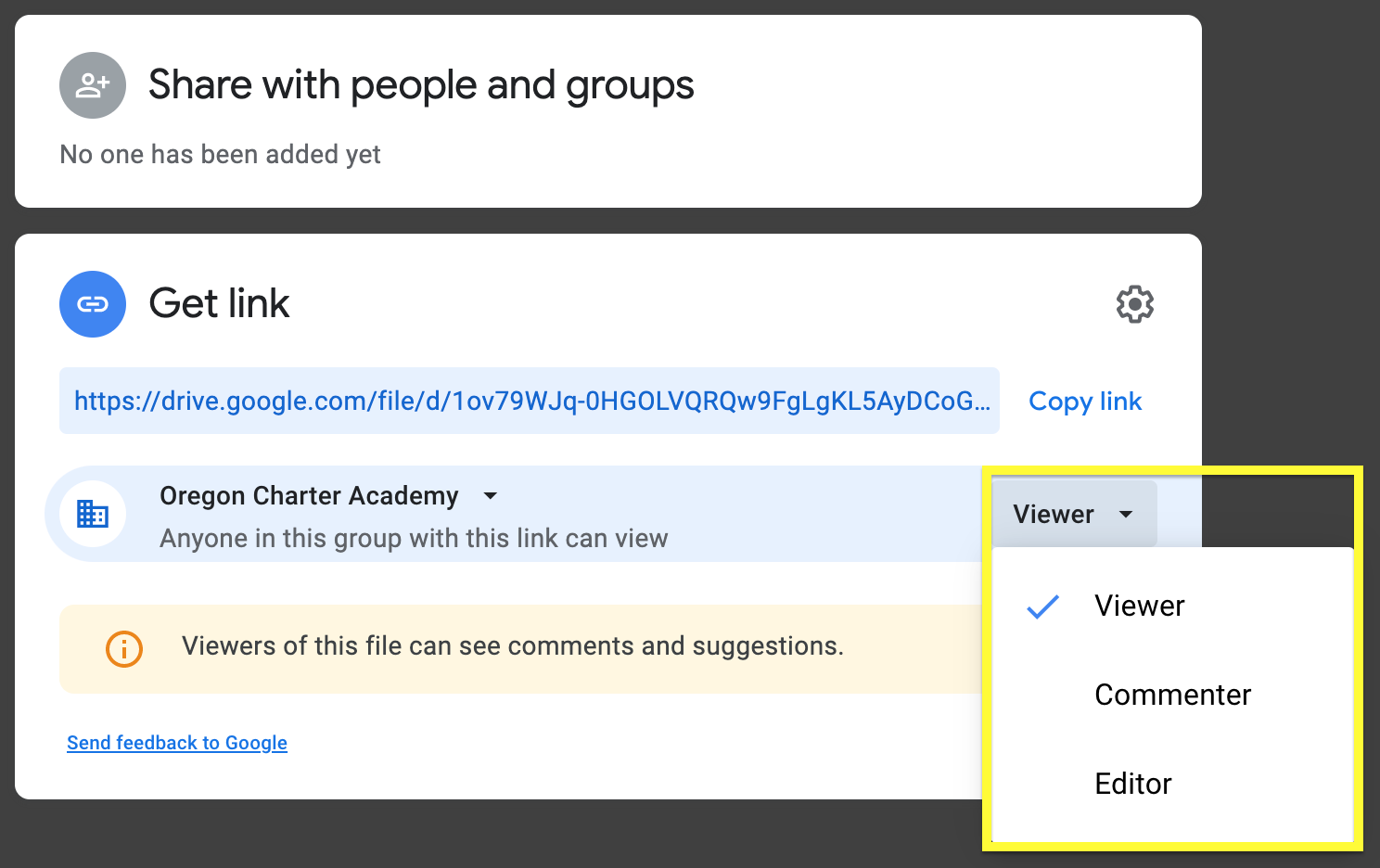
Now you can paste the link to the video file wherever you like! Paste it into the text of an assignment to share it with your teacher, or Paste it into a discussion post to share your screen with others!
Still having issues sharing your video? Don't hesitate to reach out to our technical support team by following the advice in this guide article:
Comments
0 comments
Article is closed for comments.