
Some assignments or discussions require you to record yourself. The first time you attempt this Chrome will pop up a message asking if you want to allow Canvas to use your camera and microphone. If you accidentally clicked Block, how do you fix that? Follow along with these steps to allow access!
When you first attempt to record yourself for your Canvas course, you may accidentally click "Block" in the little pop-up window. After this, Canvas will show you a message every time you try to record that says "Please allow Canvas to access your microphone and webcam."
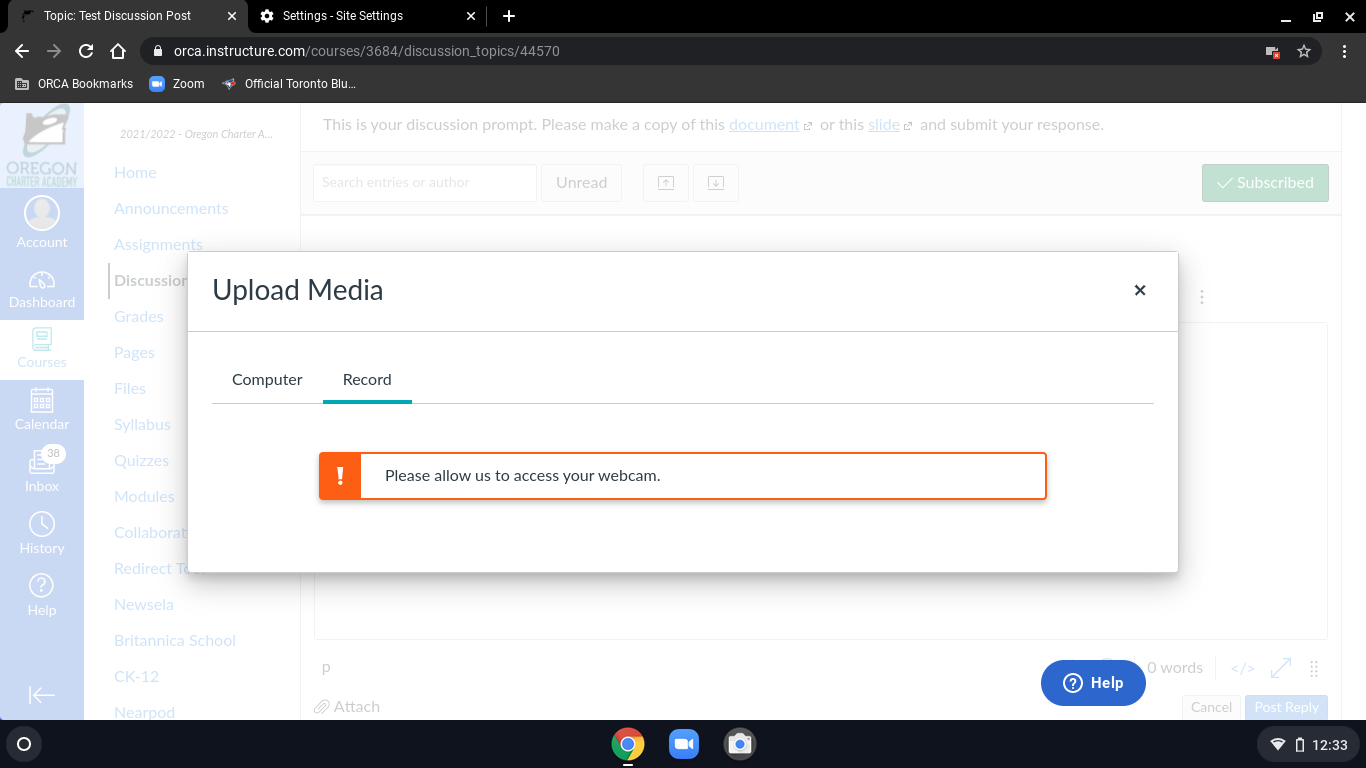
We now have a few quick steps to stop blocking Canvas access to your microphone and webcam, and allow you to record your assignment!
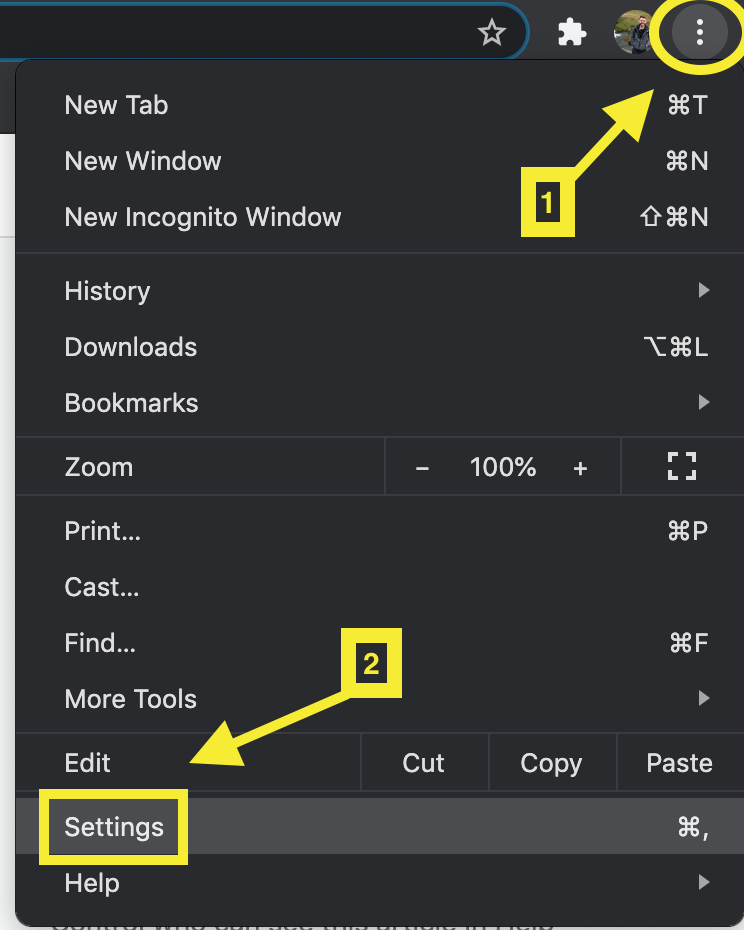
- Click on the button at the top right of your Chrome browser that looks like three dots
 stacked on top of each other. In the window that opens up from clicking that button, you will click where it says "Settings".
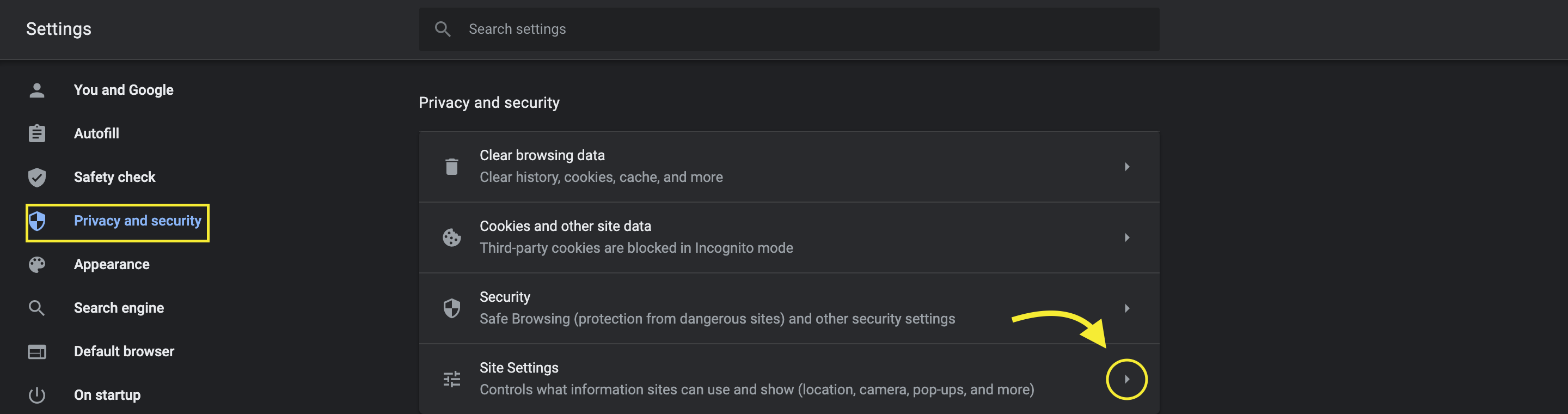
2. A new page will open up, this is the Google settings center! To get to the setting we are looking for, click "Privacy and security" on the left side of the page. Then click on the arrow to the right of "Site settings" in the middle of the page.
3. You will then click another arrow, this time to the right of "orca.instructure.com".

4. Here we can see and change many settings for Canvas. You will see that to the right of "Camera" and "Microphone" it may say Block. Click on the arrow to the right of each of these and click on Allow in the drop-down box for both "Camera" and "Microphone".

5. Now you can go back to your Canvas assignment and see if you can now record! You should refresh the page. If you can, feel free to close the page with the Google settings, you are all done!
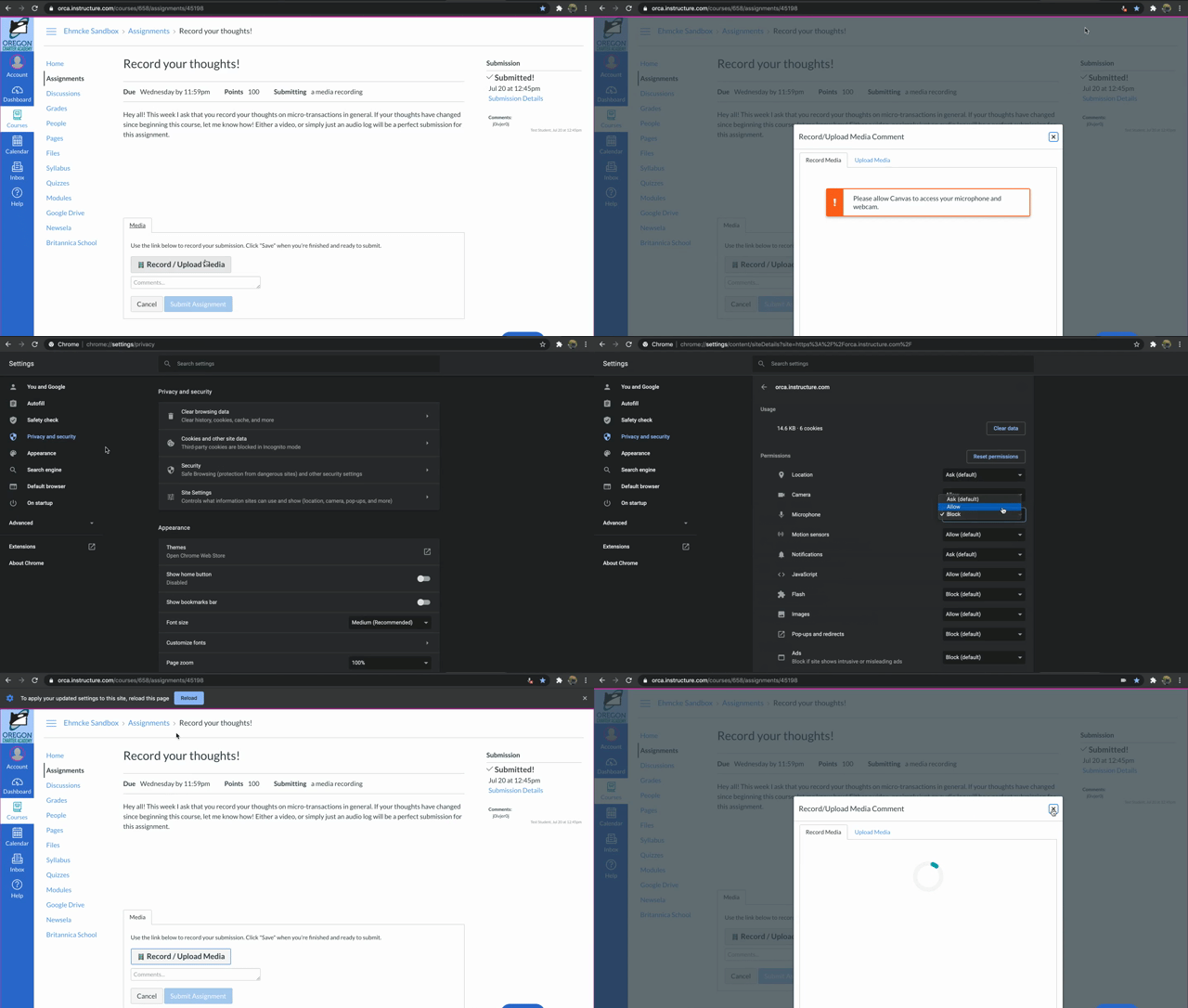
Here is a quick run through of the process described.
If you run into any issues, or have any questions about Chrome, please refer to the following article for how to reach out to tech support.
Comments
0 comments
Article is closed for comments.