
So you recorded an absolutely BEAUTIFUL video in Screencastify, but cannot figure out how to post it into Canvas? Here are the steps for embedding a video into the Rich Content Editor in a page or assignment in Canvas:
Every video you record in Screencastify will give you multiple options for sharing or exporting it! These options are found in the Screencastify app when you have the video open after you have recorded it. For Canvas, it is always best to embed the videos. Posting a link to a video will often cause errors with sharing permissions.
1) Click on <> Get embed code to the right of your Screencastify video. This will open a pop-up window.
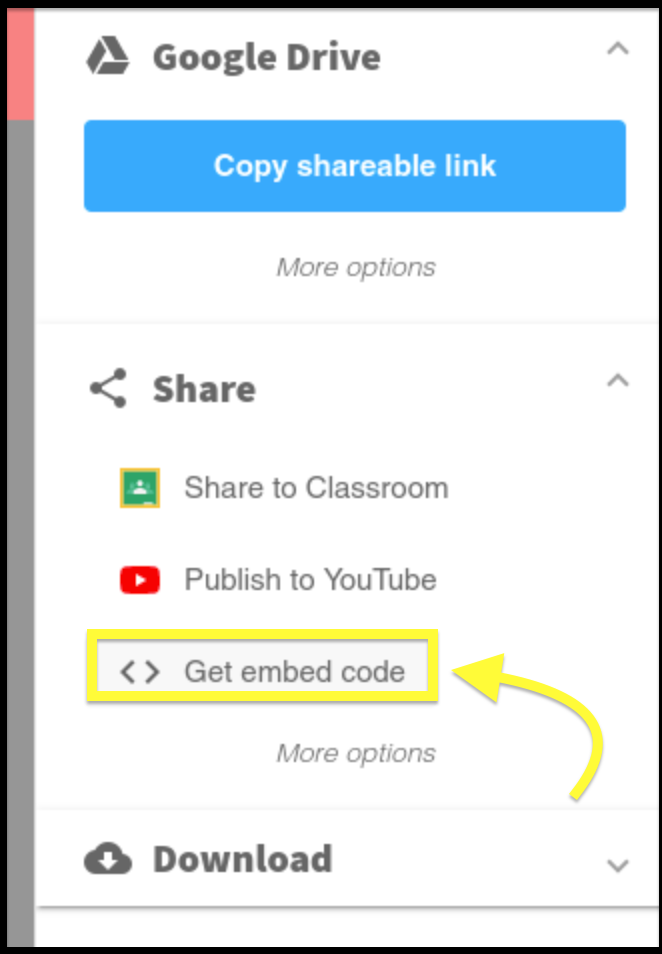
2) In the pop-up window click on Copy embed code. This will copy the code you need for Canvas. Now, head over to the Canvas page where you want to post the video.

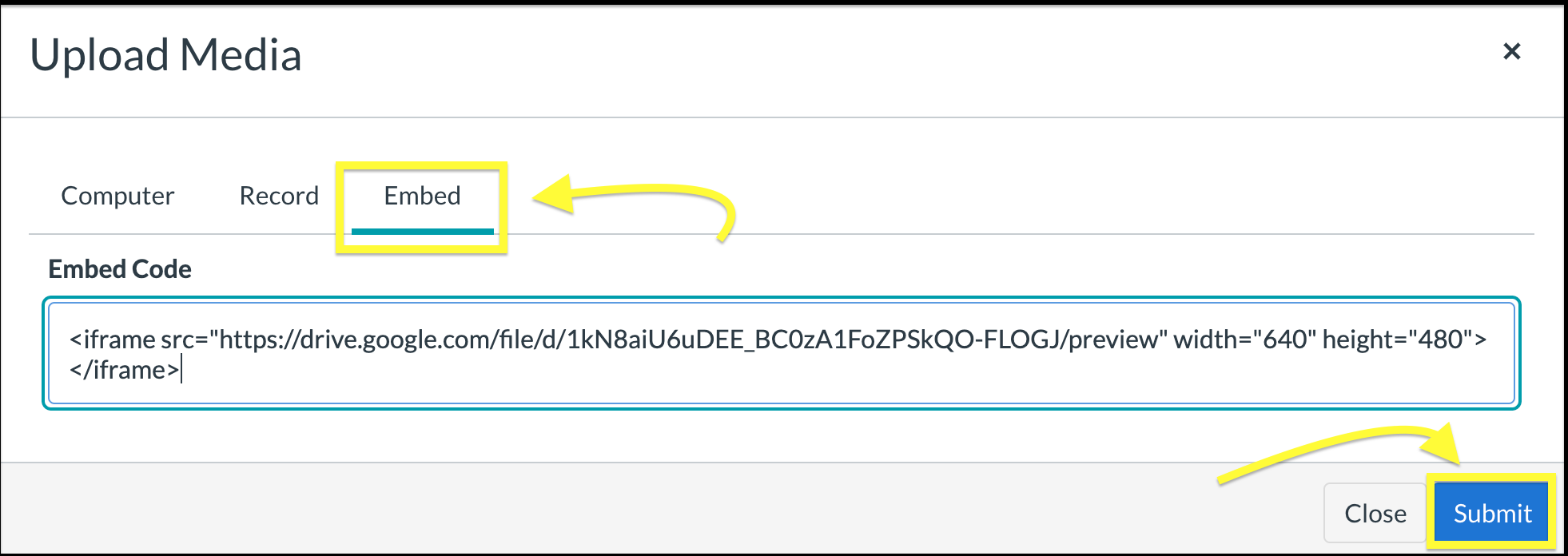
3) Now that you are on the page where you want to post your Screencastify video, you can embed the code from before! Begin to edit the page and place your typing cursor where you want the video to be on the page. Next, click on the cloud icon here:

4) Then, paste your embed code from Screencastify and Click Submit. Save the page like usual and you should be all set!
Note: it may look like the video will not load, it is processing and may take time to show properly if it is a recent recording.
If you're unable to successfully post your video into the rich content editor, do not hesitate to reach out to our technical support team by following the advice in this guide article:
Comments
0 comments
Article is closed for comments.