
Your Chromebook should automatically check for Chrome OS updates while connected to WiFi or Ethernet. Sometimes, it seems easier just to do it yourself. Follow this article for a step-by-step guide to manually updating your Chromebook operating system.
Checking for available updates
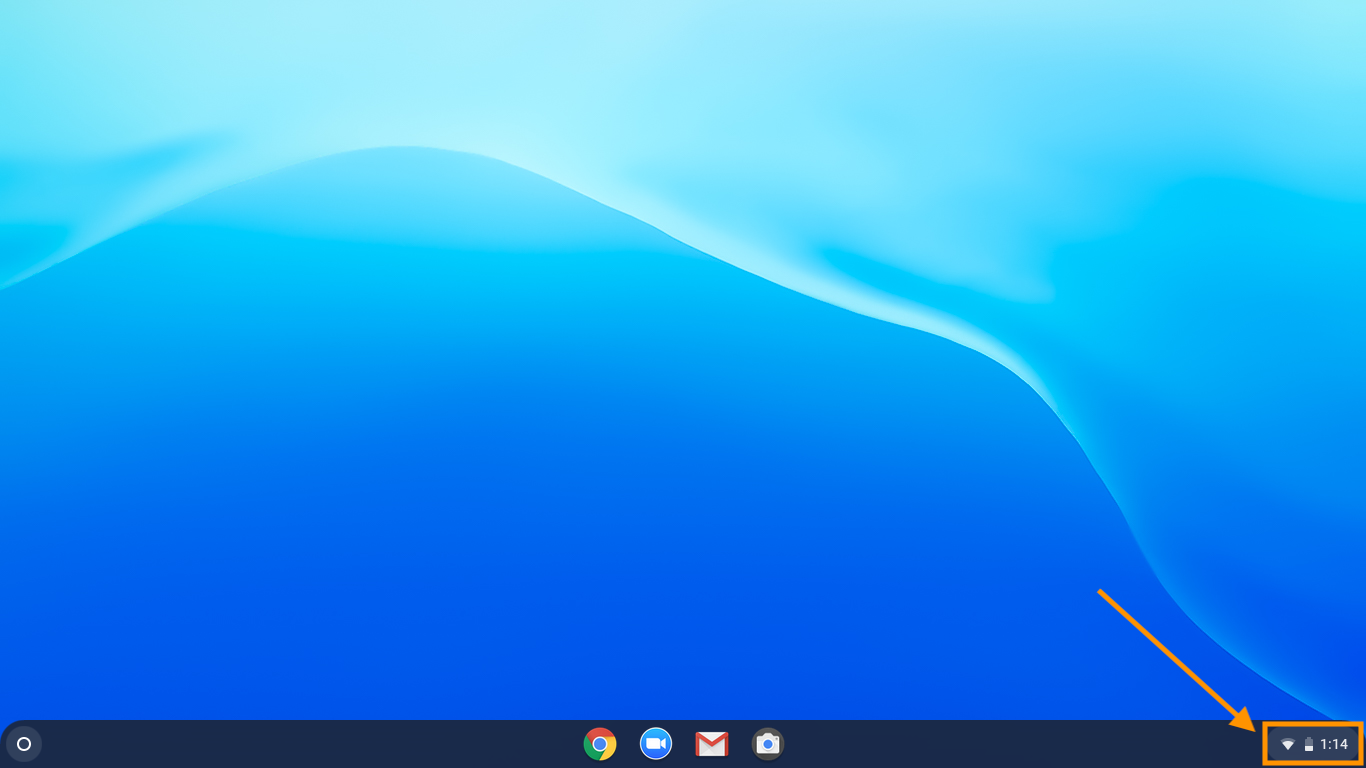
1. Click on the time in the bottom right of your Chromebook desktop.
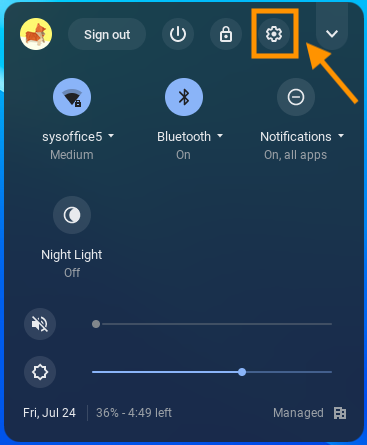
2. Click the gear to open Settings from the system menu.
3. You are looking for a menu item called About Chrome OS. To find it, you can either enlarge the settings menu by clicking the square-shaped button in the top right  or you can expand the menu selections by clicking the hamburger menu
  in the top left. Either way, locate About Chrome OS in the bottom left.

4. On the next screen, find the button that says Check for Updates and click it.

5. After a short time, Chrome will determine whether or not you are need of an update. If so, select Restart to Update (your computer will shut down and start up again on its own). If not, a friendly message will tell you your Chromebook is up to date. That's it—you're done!

Need more help?
Feel free to reach out to us with any further questions. For more information, read our article about receiving technical support.
Comments
0 comments
Article is closed for comments.